


Voxengo Logo
On-line links: Products - Downloads - Purchase - Contacts - Forums
Voxengo Soniformer VST HELP

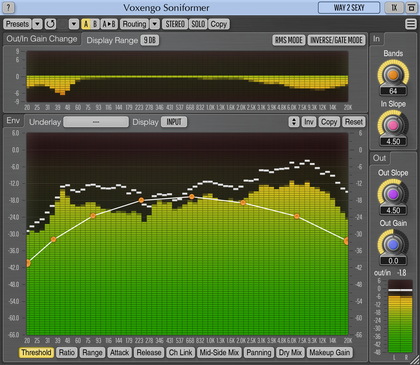
Voxengo Soniformer VST Screenshot


Contents

Introduction
General plug-in information
Knob mode
Processing blocks reordering
Envelope control buttons
Envelope: control points
Envelope: group editing of control points
Program management buttons
Knob control
Global settings
Troubleshooting tips and additional information


Introduction

Voxengo is pleased to introduce the next major version of PC VST plug-in called Soniformer. This plug-in is an innovative mastering tool for DAWs (Digital Audio Workstations) that allows the user to form and reform the sonic structure of any sound material.

The main idea behind Soniformer is a spectral balance. A perfectly balanced mix can be seen on a spectrum analyzer as a smooth spectral curve with minimal number of peaks and notches. There can be some deviations from this rule, but generally it always applies. Soniformer uses compression to adjust the spectral balance of any sound material being processed in a way that its spectral curve fulfills the aforementioned rule. Thus, Soniformer could also be called a spectral compressor.

Every parameter of Soniformer is defined by means of a graphic envelope which is freely-modifiable and which may contain up to 32 control points.

Soniformer implements both compression and expansion, which allows a variety of different sound structures to be created, including classical tape compression, unobtrusive bass expansion, and general mix compression. And it all sounds pristine! One could say that Soniformer brings a classical warm analog compression to a digital workstation. This is true, because even at very subtle compression settings, Soniformer brings a strong feel of a professionally balanced mix. In fact, Soniformer allows the user to perform professional sounding mastering in a budget environment. Spectral balance is almost a universal thing, and every mastering engineer has to master it, while Soniformer brings it the easy way. Soniformer's adjustments of the spectral balance actually reveal details of the mix being processed.

Voxengo Soniformer features:

  • Spectral compression technology
  • Envelope-driven parameters
  • 32-band spectrum analyzer
  • Mid/side processing
  • Gain change meters
  • Stereo linking envelope
  • Stereo width envelope
  • Stereo pan envelope
  • Knob control mode
  • Processing blocks reordering
  • Two level detector types
  • "A-to-B" comparisons
  • Factory presets
  • Mono-to-Stereo, Stereo-to-Stereo processing
  • Sample rates up to 192 kHz supported
  • Native assembler DSP code
  • 64-bit internal precision


  • General plug-in information

    During processing, Soniformer divides incoming audio stream into a large number (32 or more) of equally-spaced bands (this makes Soniformer a rather CPU-consumptive plug-in). The lowest band has a center frequency of 25 Hz; the highest controllable band has a center frequency of 20k Hz. This layout brings about -30 dB around DC attenuation, which is good for a general DC offset removal.

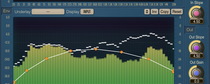
    Soniformer is controlled by means of parameter envelopes. Each parameter's envelope is defined across the audible frequency range. Values (in dB) on the left of the envelope editing surface show either the scale of the spectrum analyzer or the scale of the gain change meters, depending on the current monitoring mode selected. Values on the right show the scale of the currently selected parameter envelope.

    As for compression settings, Soniformer adopts a rather `raw' compression technique, so if you are familiar with compressors, these settings won't be hard for you to understand. The only difference is that all parameters should be defined in two dimensions, instead of one dimension.

    Since lower frequencies have longer oscillation times than higher frequencies, the Attack and Release values for the lower frequencies must be specified at least a magnitude higher than for the higher frequencies. It may be also benefical to use smaller Release values compared to Attack values. This helps to preserve the dynamics for the most part.

    Beside normal compression controls, Soniformer has a "Wet mix" parameter, which may look rather strange as a part of a compressor. It was added because this kind of compressor may sit well in a mix blended with the original input signal. The other `non-standard' parameter is the "stereo width" which you can use to apply the mid-side stereo widening/narrowing technique across the audible frequency range. Please note that the Width envelope should first be enabled by adding it into the processing "Order" selector.

    Spectral stereo panning can be also used by defining the according envelope and switching it on the "Order" selector.

    Soniformer also features a pretty interesting stereo linking approach which is controlled by the means of an envelope. Normally, processing should be whether stereo linked or unlinked. But here you can specify values inbetween. Although specifying various linking values for different frequencies is not a totally correct approach, but still this can be used to add some unique touch to the stereo program material. Please note that if stereo linking envelope stays at 100% Soniformer optimizes compressor performance automatically.

    The "MS Mode" switch enables mid/side processing. In MS mode Soniformer encodes L/R stereo signal into mid (mono) and side (stereo) channels which then can be compressed or expanded as needed. After processing is performed M/S signal is converted into L/R signal back. MS processing is only available for stereo audio. The "Mid" option enables mid channel processing while the "Side" option enables side channel processing.

    The "Fluffy" control button disables or enables default `fluffy' gain adjustment behavior (Soniformer uses the square of the calculated gain in this mode). In the "Normal" mode Soniformer compresses/expands in a more common and predictable way.

    The "Peak"/"Env" switch controls which mode is used for detecting signal's level. The "Peak" mode uses every sample of the sound stream. The "Env" mode uses the signal from the signal envelope follower fed by the sound stream. The "Env" mode--due to its natural inertia--gives a smoother sound.

    The "Weighting" selector allows you to apply a weighting function over the spectrum. Such weighting can be helpful when tuning the very low and very high frequencies. The "Internal" weighting option uses idealistic spectrum compensation (by means of a modified parabolic curve centered around 700 Hz). Please note that this option is mostly experimental. "A" applies a pure A-weighting curve. "C" applies a pure C-weighting curve. "A + C" applies the A-weighting curve mixed with the C-weighting curve.

    The "CompMode" switch can be used to switch between Soniformer's compression algorithms. In the "Normal" mode Soniformer compresses audio in a standard way - signal above the defined threshold gets compressed or expanded according to the Ratio envelope. In the "Inverted" compression mode signal below the threshold gets affected - it is attenuated or amplified according to the Ratio envelope.

    The "Input Slope" parameter adjusts the slope of the spectrum you see on the spectrum analyzer. You should carefully choose the slope value since you may get either too bright or too dark mix if the slope value chosen was unsuitable for the mix you were working on.

    The "Out" knob controls the output signal gain. A special button near the Out knob label turns red when three sequential clip incidents were detected on any output channel. Click this button to reset it to its normal state.

    A counter near the "In/Out Diff" label shows the difference (in decibels) between the input and output signals. This counter can be helpful when you are adjusting the Out knob in order to accomodate level difference between the input and output signals introduced by the processing. Positive values mean that the output signal is louder than the input signal. You can click this counter to reset it.

    You can engage the Narrow band sweeping function by clicking the left mouse button on the control surface while holding the CTRL key. This function allows you to listen to a selectable narrow band in order to detect various sonic artifacts which then can be tamed by Soniformer.


    Knob mode

    Envelopes in Soniformer can be also adjusted in a knob mode which can be engaged by pressing the "Knob" button. Please note that switching to the knob mode may destroy the original envelope information. Knob mode works with 3 control points in each envelope and so original envelopes will be converted to contain 3 control points only. This conversion cannot be undone (if you have not saved a preset)! However, if your envelopes already have 3 knobs in each envelope switching to the "Knob mode" would not change the original envelopes.


    Processing blocks reordering

    A set of special "Order" selectors can be used to switch various parts of the Soniformer on and off, and to change processing sequence. For example, by excluding the "Comp" (compressor) block from the sequence you may turn Soniformer's compression algorithm off. This can be useful when you only need to apply Stereo Width ("Width") and/or Panning ("Pan") envelopes to the program material. "O.Gain" processing block corresponds to the "Out Gain" envelope meaning you may apply it before or after compression, stereo width or panning processing is applied.

    Order mode buttons can be switched to Off state and back with the right mouse button.


    Program management buttons

    Top buttons

    You can use the "Preset..." menu button to perform basic FXP/FXB preset/bank management tasks. The "Set as default" menu option of the "Presets..." menu allows you to assign the currently loaded program to the default preset program. This default program will be loaded whenever you enable a new instance of the plug-in or reset the current program. You can use the "Reset default" option to restore the default factory preset.

    By pressing the "A|B" button, you can exchange the current and shadow (or, alternatively, "A" and "B") programs. The "Copy" button copies the current program to a shadow one.

    Since only a single shadow program is used for the whole program bank, you can use "A|B" button to copy programs. To do so, you first need to switch to a program you want to copy and press the "Copy" button. Next, switch to a program where you want to put the first program and press the "A|B" button.

    The "Reset" button can be used to reset the current program. All parameters will return to their default states.


    Envelope control buttons

    Envelope control buttons

    The "Overlay" selector button allows you to change the envelope displayed as an overlay envelope. The overlayed envelope is displayed in red color.

    The "Copy" (copy to) button allows you to copy the current envelope to another envelope.

    The "Invert" button inverts the current envelope.

    The "Arrow Down" button can be used to attenuate the parameter envelope. The "Arrow Up" button amplifies the parameter envelope, doing the opposite of what the "Arrow Down" does.

    After every change of the parameter envelope, with the help of the "Undo" and the "Redo" buttons, you have an opportunity to undo changes made. The parameter envelope change starts when the left mouse button is pressed and ends when the left mouse button is released. You can also undo some operations like control point insertion and deletion.

    The "Reset" button resets the envelope. You can undo the reset later.


    Envelope: control points

    Control points

    This picture shows the control points which can be dragged with the left mouse button to adjust the current envelope. Double-clicking on a control point removes it. The first and last points return to default vertical position when double-clicked. To add a new control point, double-click the control surface at the desired position.

    If several points are selected and you double-click any of the existing points, all selected points will be either deleted or reset.

    Dragging the envelope line selects two points, adjacent to this line, and enables you to move these points, vertically constrained.

    You can hold the ALT key to enable fine-tuning. In this mode you can specify position of the control point with ten times more precision. By holding the CTRL key and left-clicking the point you can reset this point to the default value (0 dB in the case of the Out Gain envelope).


    Envelope: group editing of control points

    Control points selection

    You can also edit groups of control points by selecting them in a very convenient manner. Just hold down the left mouse button and start dragging the control surface. In response to your dragging, a box will appear showing the selection area. All control points that enter this area become selected. By dragging any single point within the selection you can then move a group of selected points the way you would move a single point, vertically constrained. When you are dragging the segment (link) between any two selected nodes, you can move all selected nodes, horizontally constrained.

    To add points to the current selection, press the SHIFT key before starting to drag the control surface. To deselect the currently selected points, simply click the control surface anywhere.

    You can press the right mouse button on the control surface to select all control points.


    Knob control

    Knob control

    To change a knob control's value, drag it with the left mouse button and move it up or down. For finer adjustment, press the right mouse button while dragging. Double-clicking on the knob with the left mouse button will return the knob to its default position.


    Global settings

    ?

    Pressing this button will display the plug-in's info screen. This screen shows copyright and registration information, and contains the "Help" button which opens the bundled HTML help file you are reading now.

    This screen also contains the following global settings. A global setting is one that affects all plug-in instances in all audio host applications.

    Global settings

    The "Spectrum Speed" selector enables you to choose the speed (inertia) of the spectrum.

    When the "Snapping" option is enabled, envelope nodes will be snapped to centers of the spectral bands.

    The "Auto Overlay" switch enables the automatic switching of the overlay envelope when you choose another envelope to edit.

    The "Pre Out Gain" switch enables `pre output gain' monitoring for all monitoring modes. This is useful to evaluate the gain adjustment made by the compression/expansion itself, without taking the main Out Gain and the Out Gain parameter envelope into account.


    Troubleshooting tips and additional information


    Why the analyzer doesn't reflect the work of 'Out Gain' curve?

    You may enable this option on the global settings screen.


    Do you have any tips on how to tune Soniformer?

    The following tuning technique can be used:

    1. Press the topmost "Reset" button to reset all envelopes.
    2. Start the audio playback, enable the input spectrum monitoring mode and adjust the Input Slope parameter.
    3. Edit the "Threshold" envelope. This envelope should have the shape the spectrum should follow in your opinion.
    4. Choose appropriate Attack, Release and Ratio envelopes.
    5. Lower the threshold envelope until you clearly hear the difference.
    6. Adjust Attack and Release and Threshold envelopes further. Ratio envelope can be also adjusted. On this step you should optimize these parameters so that you get a tight, `glued', but not an overcompressed, sound.
    7. After enabling the "Gains" monitoring mode tune the "Out Gain" envelope to accomodate for gain adjustments taking place.
    8. Tune the "Wet Mix" envelope to your likening.


    Do you have any suggestions on how to use Soniformer during mastering?

    Soniformer should be used before any equalizer in the mastering chain, because if used after an equalizer, the equalization settings will be adjusted by it. A sample effect chain would be: Soniformer, EQ plug-in and loudness maximizer/limiter. It is suggested that mastering reverbs be used before Soniformer so that the reverb can be `densified' to create a more warm sound.

    EQ can also be used before Soniformer if the original track's frequency balance is far from what is needed. This way, the initial EQing will help Soniformer straighten the spectral balance.


    Do you have any tips on how to use factory presets?

    Factory presets are actually only `starting points'. They are generally usable, but of course some tweaking must be done to make them suitable for a particular mix. What you will definitely need to adjust is the threshold, because the input level of your mix might be different from what was used by us during the design of the preset. The other parameter that you might need to adjust is output gain.


    I am trying the demo of Soniformer. It strikes me that this is actually a very complex multiband compressor - so my question is - just how many bands? It looks like it has far more than what you would typically find in a multiband compressor. Can you clarify?

    Soniformer uses 32 bands. At higher sample rates it may use some more additional bands.


    I find it difficult to understand how node dragging works.

    When you are dragging a single node, you can move it freely. When you are dragging a selection of nodes, you have two options: either drag one of the selected nodes to move all of them horizontally, or drag the segment (link) between the nodes to move all of them vertically.


    Does using Env detector effectively disable attack and release settings?

    The Env detector--when enabled--lowers the speed of the response of the compressor to the incoming transients.


    You advise, "Start the audio playback, enable the input spectrum monitoring mode and adjust the Input Slope parameter." What exactly should I be looking for here? Am I trying to find the position where the spectrum looks most 'flat' before applying any processing, or should I make a subjective analysis like, "I know my mix sounds a little bassy to begin with so I should adjust the Input Slope until it reflects that." I noticed most of your presets range between 3.0 and 4.5 for the I.S. The Input Slope adjustment affects only the spectrum display and not the audio processing itself, correct? I mean to say, the I.S. only affects what I see and not what I hear, right?

    I suggest you to adjust the Input Slope until you get a mostly 'flat' spectrum. Having experience you can set the slope to some predetermined value - modern tracks have 3.5-4.5 dB slope. Some very old recordings may have 6 dB slope. Moreover you can correct several tracks of an album by using the same input slope and trying to achieve a flat spectrum display by adjusting control envelopes (like Out Gain). Input Slope affects the analysis and the overall compression/expansion action since it 'rotates' the spectrum around the existing Threshold control envelope.


    I'm not sure what you mean when you say, "The 'Internal' weighting option uses idealistic spectrum compensation." Is this a custom spectrum not related to A- or C- weighting? Is it something akin to the ears' sensitivity to music rather than noise (like the current A- and C- standards are)? Or do you mean to suggest that an output curve shaped like an upside down parabola will be close to the sound of modern mastering EQ-wise?

    The 'Internal' weighting option is a curve I have empirically come up with - I do not think it fully relates to some physical facts, but it can be useful nevertheless. Weighting is only a helper - it is not something very solid nor it is 'a must'.


    Is the A + C weighting the same as the rarely used B-weighting standard?

    'A + C' weighting does not substitute for the B weighting - it is just an average of A and C curves. While C curve is used for loud recordings, 'A + C' can be useful for normal sound pressure level recordings.


    I can't seem to understand the 'Fluffy' thing. So what does it do?

    This is hard to describe in common words. In general, this mode affects the shape of compression transfer function. From the math side, the gain reduction function is being squared in this mode. During compression this creates a slight peak right after the signal reaches the threshold level. Not that this is actually a peak or negative gain reduction, but a slight gain reduction 'suspend' after which the gain reduction is raised relatively swiftly. With expansion, things are pretty the same - it suspends for a moment, and then increases the volume (or something like that). Attack and Release don't directly alter this behaviour. This mode does not affect detector - only compressor part.


    Can you Solo a band or group of bands in SF to hear just what's going on in a certain frequency range?

    You can't solo bands in Soniformer, but you can use the 'narrow band sweeping' function: press the left mouse button on the control surface while holding the CTRL key to enable it.


    I understand that the Y axis label on the RIGHT of the edit window shows the range of adjustment for the currently selected envelope being edited, but what does the Y axis label on the LEFT of the edit window represent (scale is -5 to 5)?

    Y axis on the left shows scale of the meters you see on the background.


    When you start mastering with Voxengo, do you have to master all the tracks that you want to master all at once with the same mastering settings? Or do you have to master the tracks separately with different mastering settings?

    Most of the settings should be fine-tuned for every track. It is mastering engineer's task to make everything sound uniform. Software itself cannot do this automatically since it is only a helping instrument. However, if the differences between tracks are in the EQ balance only, you can apply different EQ setting for each tracks and THEN use the same Mastering Compressor/Limiter setting for each track. But this will work only if your tracks were tracked and mixed equally, with the same instrument set.


    What exactly is wet mix applying to my audio when used? How does this work in relations with the compression? When using the Wet Mix is this the same thing as applying varying degrees of parallel compression?

    Wet mix is a pretty simple concept. When wet mix is at 100% it means 100% of the output signal is wet compressed signal. If this goes lower, original non-compressed signal will be present in the output. For example, 50% wet mix means there is 50% if compressed and 50% if non-compressed signal. 0% wet mix means no compressed signal will be available in the output. In other words, Wet Mix controls 'parallel compression' aspect of Soniformer.


    Do you mind stating briefly the principle behind the stereo width parameter? Is there (eg) some mid-side going on in the background?

    It is exactly mid/side technique, but applied in multi-band manner. Since it is mid/side technique, it is fully mono-compatible.


    When moving the Input Slope knob, should I be able to hear these changes?

    To hear how Slope adjusts the sound set the Threshold envelope pretty low and set a moderate compression envelope. Then, while adjusting the Slope you'll hear how compression shifts from one part of the spectrum to the other. Slope setting itself does not alter the sound - it only affects level detection by 'rotating' spectrum (applying a constant gain expressed in Decibels per octave).


    Can Soniformer compress the lower frequency content only, leaving the higher frequencies unaffected?

    Yes, it can do that since it supports frequency-dependent envelopes for all parameters.


    Happy Mastering!


    Copyright © 2003-2007 Aleksey Vaneev

    VST is a trademark of Steinberg Media Technologies GmbH.
    All other trademarks belong to their respective owners.
    Plug-in uses PNG library by Gustavo Huffenbacher Daud