Voxengo Logo
On-line links: Products - Downloads - Purchase - Contacts - Forums
Voxengo Marquis Compressor VST HELP

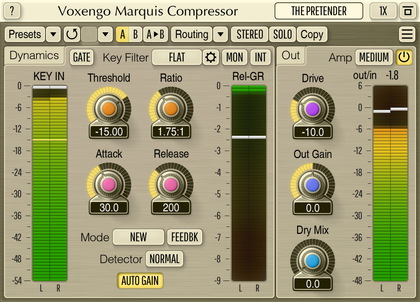
Voxengo Marquis Compressor VST Screenshot



Contents

Introduction
Preset management
Knob control
Level meters
Parameters
Key signal filtering
Program-dependent release contour
Troubleshooting tips and additional information


Introduction

Voxengo is most happy to present to you a new universal compressor PC VST plug-in: Marquis. This compressor incorporates all digital signal processing advancements we have made so far. You'll find a very smooth compression performance in this compressor, coupled with a very harmonicaly-rich sound, both suitable for mixing and mastering.

Marquis features a unique signal level detection algorithm, which creates a very open, punchy, compressed sound with an impressive transient response. Beside this, Marquis compressor offers a classic feedback (opto) compression mode switchable to a more common feed-forward compression. Both modes perform differently, but equally well.

While Marquis works fine with normal compression levels, it works exceptionally well for brutal "tape" drum compression. The program-dependent compression release stage can be controlled precisely via the special "contour" parameters this compressor possesses.

All of these excellent features are backed up by a responsive and consistent graphic representation. You may visually control compression function, release contour, key signal filtering EQ curve, level detector, gain reduction and output signal meters.

We would like to focus your attention on a new level meter design we have implemented for Marquis. These level meters are built from four RMS meters, all tuned to different integration times. Such design allows you to evaluate the dynamics of the signal and see the constant signal level, together with transient signal peaks. Conventional level meters are unable to deliver such information, which by itself is most useful when setting up dynamics processing.

Voxengo Marquis Compressor features:

  • Variable knee design
  • Harmonically enhanced sound
  • Three compression behaviors
  • Feed-forward and feedback (opto) modes
  • Different coloration types
  • Release contour controls
  • Key signal filtering
  • 4-level meters
  • "A-to-B" comparisons
  • Factory presets
  • Mono-to-Stereo, Stereo-to-Stereo processing
  • All sample rates supported
  • 64-bit internal precision
  • Native assembler DSP code


  • Preset management

    Top buttons

    You can use the "Preset..." menu button to perform basic FXP/FXB preset/bank management tasks. The "Set as default" menu option of the "Presets..." menu allows you to assign the currently loaded program to the default preset program. This default program will be loaded whenever you enable a new instance of the plug-in or reset the current program. You can use the "Reset default" option to restore the default factory preset.

    By pressing the "A|B" button, you can exchange the current and shadow (or, alternatively, "A" and "B") programs. The "Copy" button copies the current program to a shadow one.

    Since only a single shadow program is used for the whole program bank, you can use "A|B" button to copy programs. To do so, you first need to switch to a program you want to copy and press the "Copy" button. Next, switch to a program where you want to put the first program and press the "A|B" button.

    The "Reset" button can be used to reset the current program. All parameters will return to their default states.


    Knob control

    Knob control

    To change a knob control's value, drag it with the left mouse button and move it up or down. For finer adjustment, press the right mouse button while dragging. Double-clicking on the knob with the left mouse button will return the knob to its default position.


    Level meters

    Level Meter

    Marquis offers a new kind of metering, which reflects attack transients as well as average signal power.

    The brightest green part of the meter represents RMS signal power, measured with 1 ms RMS integration time. The darkest green part of the meter corresponds to 1000 ms integration time. In between, you may see 10 ms and 100 ms RMS integration time meters, as well.

    Evaluation is very simple: if both dark and bright colors are present on the meter, it means the sound material has dynamics in it. The higher the span between the brightest and darkest color is, the greater dynamic response this sound material has. If you see no bright colors, it means the level change is not significant enough to be reflected. For example, a clock ticking may have wide dynamics, while a sustaining bass note may show a narrow dynamic response.

    On the gain reduction meter (which is located right below the compressor function display), if all you see is the darkest color--slowly changing over time--it means the compressor settings do not yield any considerable dynamics compression, and the compressor is working more like an automatic gain control unit. However, if you see the brightest color appearing frequently, it means the dynamic range is getting compressed.

    These meters also display peak values which are held for 1 second. Meter overshoots are displayed in red. The meter release time is approximately equal to 1 second.


    Parameters

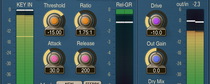
    Threshold specifies the threshold level which allows the compressor to decide whether to compress the current signal or not. I.e., if the signal's power is below the Threshold, no compression takes place. Please note that you will need to adjust the Threshold parameter in order to fine-tune to your needs any factory presets you are going to use. Some presets may not show their effect unless a correct Threshold has been chosen.

    Ratio controls the power (or amount) of compression.

    Knee specifies the span of the compression curve's knee. The bigger the knee setting is, the softer and rounder the knee is.

    You may monitor these paramters visually on the Compressor Function screen. Please note that this screen is not like what you see in most compressors. This display shows gain reduction function depending on the level - not the common input/output signal level relation.

    Detector switch selects the signal level detection algorithm. You may use the "Classic" detector type instead of the default "Round" to get a more conventional compression sound. For example, if you want to get a more punchy drum compression, you may need to use the "Classic" mode. The "Round" mode is more fluid and creates a smoother sound, which may not always be suitable when compressing drums. However, this solely depends on your taste.

    Attack and Release parameters control the time constants of the compressor. Higher attack times allow transients to pass through, while lower attack times compress transients better. Release time greatly depends on contour parameters.

    Force is an unconventional parameter which allows you to mix in signal which was compressed with zero release time. This can be useful when creating a "squashed" compression sound, coloration and even distortion. Coloration change is most evident when the "Feedback" compression mode is being used.

    Dry controls the level of the original untouched input signal being mixed to the output.

    Out controls the overall output signal gain. You may find the RMS input-output level difference readout (in decibells) right above the output level meters. This meter has 3 seconds running integration time. Positive values mean that the output signal is louder than the original input signal.

    Makeup switch enables or disables make-up gain correction.

    Sound switch allows you to change the default Phasy sound mode to a phase-linear sound mode which does not affect phase response of the program material. This mode can be particularly useful for mastering applications. Phase-linear mode consumes roughly 15% more CPU resources in comparison to the "Phasy" mode. NOTE: when changing this switch it may not update its state immediately which means your audio host can't switch between these modes automatically. In order for this change to take effect you should stop and start playback in your audio host.

    C.Mode switch select compression mode and overall coloration.

    T1/T2/T3 switch selects between different attack/release behaviors. This switch greatly affects the overall performance of the compressor. You should select behavior in accordance with your taste. T3 mode recreates attack/release behavior of an analog compressor from the past and is good at achieving classic drum bus compression sound. T3 mode is best used with the "Classic" detector and the "Clean" coloration (though, other coloration types can be selected of course), with all Release Contour parameter set to below 0.50. Please note that T3 mode provides more gain reduction at the given ratio setting in comparison to T1 and T2 modes.

    Forward mode selects a common "feed-forward" compression scheme which is stable and is usually usable for mix compression. Feedback mode selects "feedback" scheme, which is also known as "opto" compression mode. It does not always sound good when applied over the full mixes, but is great for vocals (adds expression) and individual instruments. Soft coloration mode selects softer overall coloration. Sharp coloration is stronger and can be useful for drums, for example. Clean option completely bypasses harmonic coloration stage.

    Please also note that Marquis uses a built-in DC filter, which helps to avoid the introduction of unwanted DC offset. It should be also noted that Marquis compressor may introduce some low-frequency oscillation due to valve modeling. This oscillation may be unavoidable, and if it is unwanted, it should be additionally filtered out with an equalizer in the chain.


    Key signal filtering

    Key signal filter

    In this picture you can see a key signal filter (equalizer) control window with several control buttons, cursor position readout (in the top right corner) and a spectrum analyzer display curve (light green).

    Key signal filtering filters signal which is used in the signal level detector - it does not filter the output signal. By boosting some frequencies, you may increase their weight for the level detector, thus increasing compression levels for these frequencies. Or, you may cut some frequencies to lower their weight.

    To enable key signal filtering, press the according "On/Off" switch. You may also monitor filtered key signal by enabling the "Monitor" option. Do not forget to turn it off after filtered key signal evaluation is not necessary anymore.

    The "Inv" (invert) button inverts the gains of the filters. The "Arrow Down" button can be used to attenuate the gains of the filters. The "Arrow Up" button amplifies the gains of the filters, doing the opposite of what the "Arrow Down" does. The "Rst" (reset) button resets filters to 0 dB and disables them.

    The "Spd" (speed) selector specifies the speed (averaging coefficient) of the spectrum analyzer. The slower the speed, the more latent the spectrum analyzer is.

    This picture also shows control points which can be dragged with the left mouse button to adjust the filter's gain and frequency (you may additionally hold the SHIFT key to enable more precise movements). Double-clicking on a control point returns it to the 0 dB gain position. Hold the CTRL key while dragging a point to enable its gain adjust only. Holding the ALT key while dragging a point adjusts its frequency only. A control point's position fully corresponds to the state of the filter in accordance with the color displayed on the bottom of the user interface.

    If several points are selected and you double-click any of the selected points, all selected points will be reset to 0 dB. While dragging a control point, you can adjust the filter's bandwidth by additionally holding the right mouse button. Alternatively, you can use the mouse wheel to adjust the bandwidth. By pressing the right mouse button, you can adjust the filter type.

    Pointing to a control point with the mouse cursor will cause it to be encircled with the green circle, and the corresponding filter's frequency response curve will become green. The orange curve on the picture above shows the summary frequency response of all currently enabled filters.

    You can also edit groups of control points by selecting them in a convenient manner. Just start dragging the control surface. In response to your dragging, a box will appear showing the selection area. All control points that enter this area become selected. Later you can move a group of selected points (encircled with a dashed line) like you are working with a single point. To add points to the current selection, you have to press the SHIFT key before starting to drag the control surface. To deselect the currently selected points, simply click the control surface anywhere.


    Program-dependent release contour

    Program-dependent release contour

    Program dependence in the case of Marquis means that the actual release time used by the compressor is adjusted in accordance with the input signal and the defined release contour. The actual release time is never less than the Release parameter's value so that the actual release time can be only longer.

    Release contour has a relative scale - its form and steepness are most important. The steeper the contour (closer to the "Min" label), the less program dependence is exhibited by the compressor (the actual release time may become faster, as well). Almost horizontal contour (close to the "Max" label) may produce a prolonged compression release time, and thus, a smoother sound.

    To sum up, with release contour you are roughly defining the 'ideal' release steepness - if the incoming audio signal follows it, compressor algorithm will make no adjustment to the specified release time. Otherwise, release time may become longer.

    You may adjust the release contour by adjusting three parameter knobs. The values of these parameter knobs do not have any conventional meaning - it should be said that the higher the value of the parameter, the less program dependence will be exhibited by the compressor. Three knobs were provided to offer more flexibility when specifying the release contour shape. With one parameter, it would not be possible to adjust curvature of the release contour. With three knobs you can adjust between linear and curved contour shape. This, to some degree, affects the release stage of the compressor, as well.

    In practice, parameter values 3.0, 1.0, 3.0 are the same as 3.0, 3.0, 1.0 and 1.0, 3.0, 3.0 - or other values in that fashion. However, actual release stage performance may differ in all these cases due to the computer's floating point precision limits. You may use these differences for artistic shaping of the release stage.

    You can partially disable compressor's program dependency with all parameters set to 10.


    ?

    Pressing this button will display the plug-in's info screen. This screen shows copyright and registration information, and contains the "Help" button which opens the bundled HTML help file you are reading now.


    Troubleshooting tips and additional information.


    I tried the demo of the Marquis and love the sound of it. However, I'm using Nuendo 2.2, and when I try to add it to a parallel drum bus, I get unwanted phasing.

    You clearly should not be using parallel compression on two different tracks with Marquis. There is a 'Dry' control to perform "mix to taste" compression inside Marquis. If you have two different drum tracks, you should insert Marquis on both. With Marquis, you have a situation (as with most analog devices) where a lot of phase shifting is introduced. Marquis does work with zero latency, but it introduces phase shifting.


    Speaking of program dependent release contour, if we find that the compressor is releasing the signal too fast for our cymbals, can we modify the contour in order to smooth it out?

    Yes, you can. Flattening the release contour should increase the apparent release time you are hearing.


    Am I right in thinking the key filter on Marquis can be used similar to a multiband comp?

    Key filtering is not about replicating a multiband compressor. The primary use for the Key filter is to give a different 'weight' to various frequencies. So, if you boost lows with the key filter, the compressor will be compressing them more (boosting is like lowering the threshold setting for the given frequencies while cutting is like increasing the threshold setting for these frequencies).


    Special thanks for presets and testing go to Michael Kingston, Niklas Silen, Daniel JS Lewis, Vitaly Zolotarev@Dawn Raid Studio, New Zealand.


    Happy Musicmaking!


    Copyright © 2005-2006 Aleksey Vaneev

    VST is a trademark of Steinberg Media Technologies GmbH.
    All other trademarks belong to their respective owners.