



Contents
Introduction
Program management buttons
Processing mode buttons
Adjustment buttons
Spectrum overlay buttons
Knob control
Control points
Group editing of control points
Filter controls
Troubleshooting tips and additional information
Introduction
GlissEQ is an analog-style equalizer in PC VST plug-in format. The most
interesting thing GlissEQ offers is its dynamic equalization performance.
Using almost any existing equalizer, you always get what you have set:
e.g., if you specify a +6 dB boost at 100 Hz you get exactly a +6 dB boost
at 100 Hz, also visible on the spectrum analyser. GlissEQ offers a slightly
different approach. When you specify +6 dB at 100 Hz, you don't necessarily
get +6 dB of gain. Actual filter gain is adjusted dynamically according to the
program material you are filtering.
This `dynamic nature' of GlissEQ gives you a much more friendly, assisting
filtering experience. Boosting up the highs will not necessarily create the
fatiguing effect of overload. Instead, you will get a pleasant
transient-emphasizing effect bringing life and dimension to your track:
thus, GlissEQ sounds simply musical.
This transient emphasis works for every frequency you tune the filter
to: e.g., it can be useful at the lower and the mid frequencies to give more
punch to the track. Moreover, the strength of transient emphasis and the
overall filter gain adjustment can be controlled with a special 'Dyn'
control. In reality, this 'Dyn' control adds a whole new dimension to the
equalizer as you know it!
Beside this wonderful `dynamic nature' GlissEQ offers a built-in FFT
spectrum analyzer. Moreover, the spectrum of the track can be exported to
any other instance of GlissEQ thus making interchannel spectrum overlays
possible. This can help you to free frequency ranges in one track to allow the
instrument in another track occupying these frequencies breathe.
Voxengo GlissEQ features:
Convenient user interface
Five filter bands
Eight filter types
Real-time spectrum analyzer
Full/bar spectrum graph modes
Interchannel spectrum overlays
Bandpass filter sweeping
Extra efficient Dyn 0 mode
High quality mode
The "Alt" quality mode
Three dynamic modes
"A-to-B" comparisons
Factory presets
Mono-to-Stereo, Stereo-to-Stereo processing
Any sample rate is supported
Internal 64-bit processing
Native assembler DSP code
Program management buttons
You can use the "Preset..." menu button to perform basic FXP/FXB
preset/bank management tasks. The "Set as default" menu option of
the "Presets..." menu allows you to assign the currently loaded program
to the default preset program. This default program will be loaded whenever
you enable a new instance of the plug-in or reset the current program. You can
use the "Reset default" option to restore the default factory
preset.
By pressing the "A|B" button, you can exchange the current and
shadow (or, alternatively, "A" and "B") programs.
The "Copy" button copies the current program to a shadow one.
Since only a single shadow program is used for the whole program bank, you
can use "A|B" button to copy programs. To do so, you first need to switch to
a program you want to copy and press the "Copy" button. Next, switch to a
program where you want to put the first program and press the "A|B"
button.
The "Reset" button can be used to reset the current program. All
parameters will return to their default states.
Processing mode buttons
"Normal/High Quality" button is used to switch between the normal
and the high-quality processing modes. High-quality processing mode internally
uses a two times higher sample rate, performing 2x oversampling. High
quality mode uses about two times more CPU resources. The "Auto" quality mode
disables oversampling in the normal real-time plug-in operation and turns
oversampling on during the offline audio bouncing. Please note that the "Auto"
mode may not work properly in all hosts (if the host does not report back when
it enters the offline processing mode).
The "Alt Quality" mode is an alternative 'high quality' mode which offers
you a considerably different sound, overall. In some cases bass boosts and
cuts may sound definitely better in this "Alt Quality" mode. This 'Alt'
quality mode performs oversampling like the 'high quality' mode, but without
required filtering step - this is not a strictly 'correct' way of
oversampling, but in the case of equalizer it works without undesired
artifacts while offers an alternative overall phase response at the same
time.
"EQ Mode" button selects the current equalization mode. The EQ
Mode directly affects the dynamic behavior of GlissEQ. EQ Mode 2 produces
smoother filter gain changes and can be described as a `warm' mode. EQ Mode
1 is better for adding `sparkle' to the sound. Mode 3 is gives a more `open'
and `big' sound.
The "Import" switch allows you to import EQ bands definition file
generated by Elevayta SpaceBoy plug-in.
The "Bypass" switch button allows you to bypass the output of the
equalizer, including the output gain adjustment stage. The actual processing
is not stopped in the bypass mode and so the CPU usage remains the same.
Please note that the state of the bypass state is not preserved between
audio sessions nor is saved within the preset.
Adjustment buttons
The "Invert" button inverts the gains of the filters.
The "Arrow Down" button can be used to attenuate the gains of
the filters. The "Arrow Up" button amplifies the gains of the filters,
doing the opposite of what the "Arrow Down" does.
Spectrum overlay buttons
This is a set of controls which affect spectrum analyzer parameters and
display.
The "Blk" (block) selector specifies the block size of the built-in
FFT (Fast Fourier Transform) spectrum analyzer. The more the block size the
more the resolution in the lower frequency range, but less time coherence in
the higher frequency end.
The "Spd" (speed) selector specifies the speed (averaging
coefficient) of the spectrum analyzer. The less the speed the more latent
spectrum analyzer is.
The "Export" selector specifies which shared spectrum slot the
output of the spectrum analyzer goes to, additionally. If you do not plan to
overlay the spectrum of the current instance of GlissEQ in other instances
of GlissEQ it is suggested to leave the "Export" setting at "---" (off).
The "Overlay" block of selectors allows you to overlay (import)
spectrums exported in other instances of GlissEQ. For example, this way
you can overlay the spectrum of the bass drum track which can be useful if
the current instance of GlissEQ was inserted on the bass track. Having
bass drum track's spectrum overlayed on the bass track's spectrum allows you
to equalize the bass track more precisely. The same concept applies to any
types of instruments you are equalizing: seeing the spectrum of another
instrument will help you to free some particular frequency ranges giving that
instrument more spectral space in the mix.
The "Slope" selector allows you to adjust the spectrum analyzer
display slope towards higher frequencies. This can be useful because higher
frequencies are usually weaker than lower frequencies, and thus tuning them
can be a difficult task. By choosing an appropriate slope setting, you can
compensate for this behavior and make the spectrum plot more convenient and
meaningful.
A selector on the right from the Slope selector allows you to switch
between the full and bar graph display modes. Bar graph resolution options are
given in octaves.
The "Weight" selector allows you to apply a weighting function
over the spectrum. Such weighting can be helpful when tuning the very low and
very high frequencies. "SF" mode applies weighting function introduced in
Soniformer 2. "A + C" applies the A-weighting curve mixed with the C-weighting
curve. "C" applies a pure C-weighting curve.
You can engage the Narrow band sweeping function by clicking the
left mouse button on the control surface while holding the CTRL key. This
function allows you to listen in a sweepable manner to a selectable narrow
band in order to detect various sonic artifacts.
Knob control
To change a knob control's value, drag it with the left mouse button
and move it up or down. For finer adjustment, press the right mouse button
while dragging. Double-clicking on the knob with the left mouse button will
return the knob to its default position.
Control points
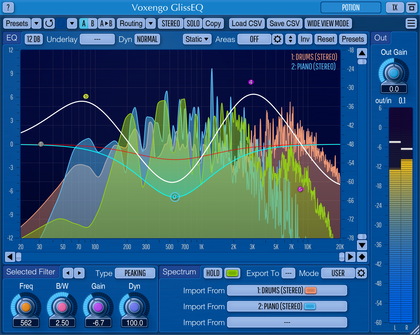
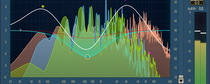
This picture shows control points which can be dragged with the left mouse
button to adjust the filter's gain and frequency (you may additionally hold
the SHIFT key to enable more precise movements). Double-clicking on a
control point returns it to the 0 dB gain position. You can hold the
CTRL key while dragging a point to enable its gain adjust only.
Holding the ALT key while dragging a point adjusts its frequency only.
Control point's position fully corresponds to the state of the filter in
accordance with the color displayed on the bottom of the user interface.
If several points were selected and you double-click any of the
selected points, all selected points will be reset to 0 dB.
While dragging a control point, you can adjust the filter's bandwidth by
additionally holding the right mouse button. Alternatively, you can use
the mouse wheel to adjust the bandwidth.
By pressing the right mouse button, you can adjust the filter type.
Pointing to a control point with the mouse cursor will cause it to be
encircled with the green circle, and the corresponding filter's frequency
response curve will become green.
The orange curve on the picture above shows the summary frequency response
of all currently enabled filters.
Group editing of control points
You can also edit groups of control points by selecting them in a
convenient manner. Just start dragging the control surface. In response to
your dragging, a box will appear showing the selection area. All control
points that enter this area become selected. Later you can move a group of
selected points (encircled with a dashed line) like you are working with a
single point. To add points to the current selection, you have to press the
SHIFT key before starting to drag the control surface. To deselect the
currently selected points, simply click the control surface anywhere.
Filter controls
This is a filter control panel. The top-left knob controls the filter's
frequency. The top-right knob controls the filter's bandwidth. The bottom-left
knob controls the filter's gain. The special 'Dyn' knob specifies the strength of the
dynamic adjustments GlissEQ makes. If the Dyn value is 1, GlissEQ makes
almost no adjustments, making a pretty ordinary filter sound. Dyn value 9
is actually an extreme setting which can give a very definitive transient
emphasizing while at the same time can produce a somewhat unstable sound. Dyn
value 0 completely disables the dynamic behavior.
The button on the bottom allows you to select the filter's type. Please
note that low-pass and high-pass filter types are not dynamic, and they
represent 4th order Butterworth filters (they are good, BTW). They were
added for the sake of additional convenience during equalizing.
You can also click this filter type button with the right mouse button to
switch the filter between the on and off states.
The "S" switch enables "solo" mode for the according filter.
The "M" switch mutes the filter. Please note that soloing in GlissEQ
does not work in the same way as in the multi-band processing plug-ins.
I.e. you would not hear a band-pass filtering effect. Also note that a pressed
mute switch will be unpressed whenever you start dragging according filter's
point on the control surface. Muted bands are not displayed (displayed as
'Off' bands) on the frequency response plot.
The vertical meter on the right is the dynamic gain change meter for the
given filter, which displays the filter's relative gain change. E.g., a
fully filled meter denotes no gain change, meaning the filter is running at
its full gain; a half-filled meter indicates the filter is running at half
its specified gain. If the meter is almost empty (black), the filter is
running at nearly 0 dB gain. In the example above, the filter is running
at about -12 dB.
The Out knob controls the output signal gain. A label below the Out
knob readout shows the difference (in decibels) between the input and output
signals. Positive values mean that the output signal is louder than the input
signal. You may click the label to reset it. A special button near the Out
knob label turns red when three sequential clip incidents were detected on any
output channel. Click this button to reset it to its normal state.
Pressing this button will display the plug-in's info screen. This screen
shows copyright and registration information, and contains a "Help" button
which opens the bundled HTML help file you are reading now.
Troubleshooting tips and additional
information
Does GlissEQ use some kind of compression?
What is meant by the dynamic nature of GlissEQ is that the filter's
specified gain is internally adjusted dynamically. You don't see it, but you
can hear it. This has nothing to do with the compression directly. The overall
effect may sound like compression is taking place, but it is a different kind
of processing.
Is GlissEQ somehow different from CurveEQ?
GlissEQ is vastly different from CurveEQ. First of all,
GlissEQ is an analog-style equalizer, with zero-latency. GlissEQ is also a
dynamic equalizer, able to offer some unique sounds.
Do you have some basic outlines of how I can benefit from GlissEQ's
dynamic nature?
With GlissEQ you can emphasize the transients in a very natural and musical
way. E.g., say you have a poorly defined bass. In this case, you simply need to tune
a moderately wide Peaking filter around 80-100 Hz with Dyn around 7.
Then simply add a gain. And so, even if your bass had almost no outstanding
transients, it will have now.
The same applies to the higher frequencies.
In the end, it makes everything much more pronounced.
Please note the following: most of the time during equalizing you won't
always need the given filter gain, because parts of the program material can
already be crowded with some frequencies. The standard filter will increase
these already-loud frequencies, too, which would not sound musical.
Dynamic EQ in such situation will decrease the filter's gain, thus making
the equalization sound better and somehow more natural/musical.
Can you state what it is about the program material that causes the gain
or any increment of gain? In other words how would you characterize a track
that receives the full 6dB gain at 100Hz, what about less than 6dB at 100Hz -
what would make that happen? You've stated it is not the threshold that
determines the gain so it must be another component of the program content.
There's frequency (of course), rms value (nope - that's threshold), peak value
(nope - that's threshold), ramp times like attack and release (decay), what
could it be. I guess it could have something to do with the transient nature
of the program material? What specifically?
It is the ratio between the input and the output signal power. This ratio
is constant for the given input signal and the given filter setup, at any
volume.
Would you recommend the GlissEQ for mastering? Or is it more for single
track usage?
From the very start I planned GlissEQ as a 'raw' track equalizer. Of
course, it can be used for mastering, but it can take a while to learn its
controls and behaviour. Also, it is not a good idea to overdrive it using
large Dyn values and high filter gains during mastering.
Peaking filter morphs to HiShelf filter? If I set a peaking filter and
move the center frequency near 20kHz, this filter morphs to a HiShelf filter
and bandwidth gets wider. Is it OK?
Yes, this is normal. It is the feature of filters I've implemented in
GlissEQ. In the high-quality mode peaking filters work as you expect.
What is Peaking Z as opposed to Peaking? It seems to have a more
pronounced dynamic effect than Peaking, but I was wondering if you could
provide a little more explanation as to what it is?
Peaking Z uses a different filtering equation. This also means it has a
different phase/transient response. That is why it has a different sound.
I saw on the website that there are 4 differents color dynamic curves.
I manage to see only one on my setup... What special trick do I need to do to
see all of them?
To be able to see (overlay) another spectrum curve you should insert
GlissEQ to another audio channel in the same project. Also, there you should
set Export to internal GlissEQ channel. After this has been done you can use
this internal channel in any other GlissEQ instance.
I need a little help with the spectral analysis, how do I set this up so
I can see the freq or other GlissEQ? I can't quite figure this out... Also,
when you are looking at other views are you seeing the processed eq version
or the raw sound before eq?
You should put GlissEQ on all channels inserts you wish to monitor. Then
you have to use the 'Export' selector. In another instance you can use
'Overlay' selectors to overlay spectrums in real-time. You always see a
processed signal in GlissEQ (be it the current or another channel).
I'm trying to understand your "spectrum overlay" capability in
GlissEQ. Does this mean you can put it on, say a vocal and a guitar and see
which frequencies are fighting, in order to better carve out each their space
in the mix?
Yes, 'spectrum overlay' was designed to be used for exactly the purpose you
have mentioned. You may see the overlapping frequencies and reduce these in
the track where they are less important.
Is the GlissEQ like a multi band Aural exciter, like the BBE
unit?
No, it is not the same thing for sure. It is an EQ with a dynamically
changing gain.
Can you explain exactly what the "Weight" function is doing? Is it
adding frequencies? Smoothing them out? I am not sure what is going on in
a technical sense.
The weighting is applied only on the analyzing stage, without affecting
the equalization processing. So, after GlissEQ has acquired power spectrum
it then applies a specific compensation curve to it and then displays it.
Just trying to get what is mode 1, 2, 3...
Those modes give a different 'feel'. They adjust the dynamic response of
the equalizer in varying ways. Otherwise it is impossible to define how they
differ from each other.
I have tried to make drastic EQ changes to see if it will reflect on the
graph, however the graph always remains around the same level as if I made no
changes. I can hear the changes I have made, but I still cannot see the
results on the spectrum analyzer. Is there a setting or mode I have to select
for this to work?
First of all, set the spectrum speed to a higher value. Secondly, you may
select a low-pass filter just to be sure it works: low-pass filter tuned to
100 or 200 Hz should roll-off everything above 200 Hz. Another point is that
in practice, using 1/3 spectrum analyzer resolution to monitor changes is
easier than the 'full' one.
What does the output clip led of GlissEQ tell me?
Clip led estimates whether clipping is possible or not.
It does not clip the signal.
I'm wondering which windowing you're using in GlissEQ and more
particularly SPAN. Maybe Blackman-Harris or Hanning or something.
Both GlissEQ and SPAN use Hanning window with 50% overlap.
Am I correct in understanding that when using GlissEQ, cuts are
basically non dynamic (i.e. processed primarily like any other EQ) and boosts
are done dynamically?
Both cuts and boosts are dynamic - depending on the Dyn setting (only when
Dyn = 0 you are getting static cuts and boosts).
Am I right in assuming that the High/Lowpass filter has a static slope
of 24db?
Yes, you are right - they are 24dB/oct filters at their default (2.54)
bandwidth setting.
Is there any way to set new default settings for GlissEQ or your other
products? For example, I would like to always have GlissEQ start with all
channels on and and Dyn=0, with one low shelf, three peaking filters, a high
shelf, and no boost/cut.
Yes, it is possible to save new defaults with most Voxengo plug-ins.
Simply set the effect as you would like it, then click on the Preset menu and
select "Set as default".
Can some one explain the differences and definitions of Shelving,
Peaking, Bandpass filters?
Shelving is a filter that looks like a shelf (or a stair). Peaking filter
has a single peak and looks like a bell overall. Bandpass allows to pass a
single frequency band only (width of this band is adjustable).
Would a High-shelf filter, mute or expose the highs?
It can do both. High-shelf means it adjusts the higher frequencies (above
the center frequency) - it looks like a stairway step up or down, on a
spectrum analyzer.
Can I run 24bit/44khz samples through GlissEQ? How would I scale 16-bit
audio to 24/44?
GlissEQ supports 32-bit floating point processing supported by VST
standard. I think your question should not be directed towards GlissEQ, but
towards audio application you are using since bit-depth conversion is usually
handled by audio application.
I want to monitor the output of Voxengo in the spectrum
analyser.
GlissEQ always shows output spectrum analysis. A special "input" spectrum
monitoring option is unnecessary: in general, input spectrum is the same as
output spectrum minus EQ curve applied.
Why have a Normal Quality mode? What algorithm compromise is being made
when you switch from High to Normal Quality? Can you say what High Quality is
doing that makes it better?
There is a difference in CPU load at the least. High quality mode performs
oversampling and thus adds some useful coloration. Oversampling itself allows
to achieve symmetric peaking filters that do not exhibit symmetry problems
near the highest (Nyquist) audio frequency (at 44100 Hz sample rate).
Normal quality mode is easier on the CPU, but it has some problems with
peaking filter symmetry near the Nyquist frequency.
Does ALT mode also uses 2x oversampling? The manual (only) says it's an
alternative 'high quality' mode?
It does use 2x oversampling, but in a mathematically incorrect manner (so,
it is not an oversampling - it is oversampling without anti-alias filtering).
This does not mean it is 'bad' - in fact, it can be good because of phase
response variation it provides.
I fear to go for Gliss now, because isn't it true that especially at low
frequencies I think one should be as phase linear as possible? So should I
better also get CurveEQ for the basses only (which unfortunatley lacks the
nice spectrum overlay feature of Gliss)?
GlissEQ has no phase-linear mode at all. You may try CurveEQ for that.
However, I doubt you really need phase-linear filters for bass frequencies.
You may just try using wider bell shapes. Steep filter changes in the lower
frequencies may indeed sound a bit boxy.
Recently, I pushed white noise through GlissEQ, and while that displays
correctly as a flat line when "Slope" is set to 0.0, it seems that when I
apply EQ (no matter if I use GlissEQ itself or a different EQ), the spectrum
display is off by a factor of 2. For example, if I apply a peaking filter at
1 kHz with 18 dB gain, the graph will only show 9 dB. A different spectrum
analyser correctly shows an 18 dB peak.
You are right - spectrum does not follow dB scale on the left. dB scale on
the left is for the equalizer. Spectrum display is meant to be adjusted
visually - there is little need for exact dB values.
Happy Musicmaking!