


Voxengo Logo
On-line links: Products - Downloads - Purchase - Contacts - Forums
Voxengo Lampthruster VST HELP

Voxengo Lampthruster VST Screenshot


Contents

Introduction
Preset management
Knob control
Model selector
On/off switch
General plug-in information
Graphical display
Troubleshooting tips and additional information


Introduction

The latest news is... You CAN have something pretty similar to tube gear in the native DAW environment. All you need now is to believe this. Voxengo has brought you plug-in called Lampthruster. Now it's your turn. Unleash Lampthruster's power! Get ready for the amazing journey to the world of Sound Character!

Voxengo Lampthruster allows you to sound like no one else. Just plug it into a channel insert, and you have a pretty Sonic Nirvana! Everything sounds rock solid and smooth like silk. Moreover, you have an endless number of sound treatment combinations to choose from. Push it hard!

The other thing you'll benefit from directly is the built-in equalizer, which simply sounds sexy. Yes, like rusty analog gear does.

To make things easier for you, everything was packed into a robust PC VST plug-in with "all sample rates" support, zero latency, and an eyes-easy GUI. To make your choice simple, the price was set to a very moderate amount.

Voxengo Lampthruster features:

  • 9 artistic pre-amp models
  • Built-in vintage equalizer
  • Graphical EQ curve editing
  • On/off switches for all processing stages
  • Factory presets
  • "A-to-B" comparisons
  • Mono-to-Stereo, Stereo-to-Stereo processing
  • All sample rates supported
  • 64-bit internal precision
  • Native assembler DSP code


  • Preset management

    Top buttons

    You can use the "Preset..." menu button to perform basic FXP/FXB preset/bank management tasks. The "Set as default" menu option of the "Presets..." menu allows you to assign the currently loaded program to the default preset program. This default program will be loaded whenever you enable a new instance of the plug-in or reset the current program. You can use the "Reset default" option to restore the default factory preset.

    By pressing the "A|B" button, you can exchange the current and shadow (or, alternatively, "A" and "B") programs. The "Copy" button copies the current program to a shadow one.

    Since only a single shadow program is used for the whole program bank, you can use "A|B" button to copy programs. To do so, you first need to switch to a program you want to copy and press the "Copy" button. Next, switch to a program where you want to put the first program and press the "A|B" button.

    The "Reset" button can be used to reset the current program. All parameters will return to their default states.


    Knob control

    Knob control

    To change a knob control's value, drag it with the left mouse button and move it up or down. For finer adjustment, press the right mouse button while dragging. Double-clicking on the knob with the left mouse button will return the knob to its default position.


    Model selector

    Model selector

    Using this selector, you can choose the behavior of the Lampthruster. Models available do not try to resemble any famous analog devices. At the same time, these models were designed to offer you a selection of good-sounding treatments. It is very likely that you will find many of these models to be very useful for your work.

    Models mostly vary by the amount of harmonics they create and the harmonics' relative loudness. Models also have different responses to the incoming audio. All models generate both even and odd harmonics, however, in some models some harmonics may fade out faster than in others.


    On/off switch

    On/off switch

    This switch button allows to enable and to disable the according processing stage. You can save some CPU resources by switching unnecessary stage off.


    ?

    Pressing this button will display the plug-in's info screen. This screen shows copyright and registration information, and contains the "Help" button which opens the bundled HTML help file you are reading now.


    General plug-in information

    As you can see, the plug-in has five EQ controls, plus three large knobs and a model selector. You can define frequency, gain and bandwidth (b/w) for all five EQ controls.

    The first five groups of knobs give you the opportunity to apply a vintage-sounding equalization to your program material. These knobs resemble a five-band "variable Q" equalizer, which works in a pretty straight-forward manner, like any sound equalizer. Bandwidth control on the shelving filters adjusts the steepness of the shelving transition: the smaller the bandwidth the steeper the transition is.

    The green-colored knobs ("FR") control the "floor reducer" stage of the Lampthruster. With this control, you can reduce the quality of your recording to create a "lo-fi" feeling, which can be very warm and smooth. The effect this stage creates is more of a psycho-acoustic nature at most settings. Please be aware that this control can be hard to tune at first.

    The red-colored knobs control the "thruster" stage. The thruster stage works in two steps: first, it equalizes the signal using the settings you have actually specified (it works exactly like the equalizer). Second, the non-linear processing is performed. Third, the inversed gain filter with the same frequency and bandwidth it applied. With this approach, it is possible to emphasize some frequency ranges so that they create more harmonics. For example, this can be useful at 8kHz to create additional presence. Likewise, using negative gain, it is possible to reduce harmonics generated by some frequency range. This can be useful at lower frequencies. The thruster stage can induce much unwanted distortion, too, so be careful with it.

    The Drive knob controls the amount of gain added to the incoming audio. The more the drive, the more harmonics will be created. In some cases with some models, high drive values can generate unpleasant distortion. It is also true that even at lower Drive settings harmonic content is still created.

    The Dry Gain knob controls the amount of original "dry" audio added to the output.

    The Out Gain knob controls the overall output volume. A special button near the Out knob label turns red when three sequential clip incidents were detected on any output channel. Click this button to reset it to its normal state.


    Graphical display

    Graphical display

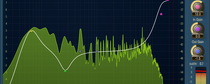
    This is the graphical display screen which can be seen by pressing the Gfx button. This screen helps a lot in tuning the filters.

    This picture shows control points, which can be dragged with the left mouse button to adjust filter band's Gain and Frequency (you may additionally hold the SHIFT key to enable more precise movements). Double-clicking on a control point returns it to the 0 dB Gain position. The right mouse button switches selected filter band on and off. You can hold the CTRL key while dragging a point to enable its gain adjust only. Holding the ALT key while dragging a point adjusts its frequency only. A control point's position fully corresponds to the state of the filter band: magenta point represents low-shelf band, white points represent peaking/parametric filter bands, green point represents high-shelf band.

    If several points are selected and you double-click any of the selected points, all selected points will be reset to 0 dB. While dragging a control point, you can adjust the filter's bandwidth by additionally holding the right mouse button.

    Pointing to a control point with the mouse cursor will cause it to be encircled with the green circle, and the corresponding filter's frequency response curve will become green. The orange curve on the picture above shows the summary frequency response of all filters.

    You can also edit groups of control points by selecting them. Just start dragging the control surface. In response to your dragging, a box will appear showing the selection area. All control points that enter this area become selected. Later you can move a group of selected points (encircled with a dashed line) like you are working with a single point. To add points to the current selection, you have to press the SHIFT key before starting to drag the control surface. To deselect the currently selected points, simply click the control surface anywhere.


    Troubleshooting tips and additional information


    Is it possible to avoid sound stutter when I change some of the controls?

    This is not possible, technically. When you change some of the controls, the plug-in needs to reset its internal state. The other way the plug-in could work in this situation (from the developer's perspective) would be to allow the plug-in to issue a loud pop. But this behavior is neither preferred nor desired.


    I hear that volume expansion occurs during processing. Is it OK?

    Such slight volume expansion is a normal behavior of Lampthruster. Like many existing hardware pre-amps, Lampthruster also adds a slight `fluffy' feeling, increasing the perceived depth of the program material, in general. If you believe you don't need such expansion, you can use a compressor before or after Lampthruster.


    I did discover one problem in Lampthruster. In Nuendo and WaveLab it seems the preset "Mix Tube Sweetening" causes a good bit of distortion whenever I try it.

    If you get more distortion than you wish, you have to decrease the `Thrs' gain (this is the main distortion `generator') and decrease the overall drive.

    Lampthruster is an effect which absolutely *can* sound distorted, but the user's goal is to avoid driving it to distortion... I could always limit the distortion, but that could limit users' freedom also. So I decided to allow the full control.


    How do the b/w (bandwidth) controls work in connection with the high/low shelf filters?

    Bandwidth control on the shelving filters adjusts the steepness of the shelving transition - the smaller the bandwidth the steeper the transition.


    Is it possible to implement in Lampthruster a solo switch, which would completely mute the dry signal, and only the harmonics produced by the plug-in would be heard?

    This is impossible to implement as this plug-in does not just add harmonics, but adjusts the signal.


    Is it possible to map out the signal flow for Lampthruster?

    It is: FloorReducer -> Thruster pre -> EQ+Nonlin -> Thruster post -> OutGain with DC Filter. Complex feedback path is in "EQ+Nonlin" - other modules are serial and do not depend on each other.


    Are these three functions of Lampthruster (EQ, FR, and Thruster) operate completely independently of one another?

    These functions are independent to some degree. For example, EQ will influence Thrs setting a little. FR is mostly independent since it is processed before non-linear processing and equalization takes place.


    The Thruster stage is sort of like an individual band control on a parametric EQ, but it works in tandem with the big DRIVE button - right? So, in theory, the Thrs stage wouldn't do anything if the Drive were at zero? But... is the EQ action at all affected by the Drive setting - or is the Drive just added after the fact?

    Drive setting affects the plug-in always, and it is merely a 'color' button (its value does not always directly relate to the amount of saturation applied to the sound). Of course, it also affects both EQ and Thrs settings. Thrs is actually an EQ band applied before non-linear processing, and applied after, with the inverse gain. This allows to do 'oversaturation' (or minimize saturation) of certain parts of the spectrum. As for equalizer, it is affected by the Drive setting because equalizer and non-linear module work together as a whole.


    I really love the sound of Lampthruster, but it introduces quite a high noise level. Any way to resolve this?

    Please try to disable the 'FR' section. This should solve this noise issue.


    Was convolution used to create the sounds in the 9 preamp models?

    All preamp models are 'artistic creations' - they are not based on any existing devices. Differences between preamp models are mostly cosmetic - they add harmonics in varying amounts and patterns. EQ's are standard second order parametrics. What makes them unique is their interaction with the preamp stage. They sound a bit 'clearer' than standard parametrics. All I can suggest you is to experiment.


    No matter what presets I use there is no difference in the sound of material processed with Lampthruster or Warmifier. They increase the volume but the character of the sound is unchanged.

    Both Lampthruster and Warmifier are mostly subtle effects. You may adjust their EQ controls to make sure effects are working. Harmonic enhancement handling usually requires user experience above average. There is difference between the presets (especially in Lampthruster), but to hear it you should know what to hear and you should be using high end sound reproduction equipment. On small speakers or budget soundcard these differences may not be so apparent. This is a nature of plug-ins - not their fault.


    Happy Mixing!


    Copyright © 2003-2007 Aleksey Vaneev

    VST is a trademark of Steinberg Media Technologies GmbH.
    All other trademarks belong to their respective owners.
    Plug-in uses PNG library by Gustavo Huffenbacher Daud