


Voxengo Logo
On-line links: Products - Downloads - Purchase - Contacts - Forums
Voxengo HarmoniEQ VST HELP

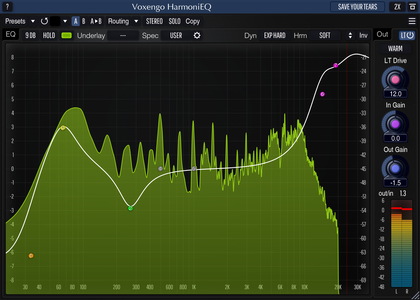
Voxengo HarmoniEQ VST Screenshot


Contents

Introduction
Preset management
Knob control
Mode buttons
Control points
Group editing of control points
Linear-phase mode
Troubleshooting tips and additional information


Introduction

HarmoniEQ is a digital equalizer in PC VST format specifically designed to bring excellent and unconventional equalizing performance, while requiring little to no effort from the user. We have called HarmoniEQ a harmonically-enhanced equalizer because the harmonic enhancement it applies to the sound is an inherent element of its overall sonic quality. Its special Boost mode, coupled with a high-shelving boost, produces a stunning harmonically-rich and shiny sound.

Since ease of tuning was one of our goals, HarmoniEQ features a single control surface to control the equalizer curve. No knobs to hassle with! HarmoniEQ's control surface workflow implements our best findings in the area of "user-equalizer" interaction. This allowed us to offer the user 3 shelving and 4 bell-shaped filters without making HarmoniEQ a hard-to-fine-tune device. At the same time, having 7 equalizer bands in total gives the user a lot of control over the spectral details of the program material being processed.

As an added bonus, HarmoniEQ features a special Woofer sound mode which allows you to make instant silky-smooth bass adjustments. Another very useful element of HarmoniEQ is its control surface's frequency range which goes up to 35 kHz. This allows you to make air boosts which are among the best in the industry. It should also be noted that HarmoniEQ works best for frequency band boosts. At the same time, frequency band cuts tend to sound almost invisible, which is a very important feature for an equalizer.

Voxengo HarmoniEQ features:

  • 4 bell-shaped filter bands
  • Low-shelf filter band
  • 2 high-shelf filter bands
  • Five different EQ sound modes
  • Special Boost mode
  • Special Woofer mode
  • "A-to-B" comparisons
  • Factory presets
  • Mono-to-Stereo, Stereo-to-Stereo processing
  • Any sample rate is supported
  • Internal 64-bit processing
  • Native assembler DSP code


  • Program management buttons

    Top buttons

    You can use the "Preset..." menu button to perform basic FXP/FXB preset/bank management tasks. The "Set as default" menu option of the "Presets..." menu allows you to assign the currently loaded program to the default preset program. This default program will be loaded whenever you enable a new instance of the plug-in or reset the current program. You can use the "Reset default" option to restore the default factory preset.

    By pressing the "A|B" button, you can exchange the current and shadow (or, alternatively, "A" and "B") programs. The "Copy" button copies the current program to a shadow one.

    Since only a single shadow program is used for the whole program bank, you can use "A|B" button to copy programs. To do so, you first need to switch to a program you want to copy and press the "Copy" button. Next, switch to a program where you want to put the first program and press the "A|B" button.

    The "Reset" button can be used to reset the current program. All parameters will return to their default states.


    Knob control

    Knob control

    To change a knob control's value, drag it with the left mouse button and move it up or down. For finer adjustment, press the right mouse button while dragging. Double-clicking on the knob with the left mouse button will return the knob to its default position.


    Processing mode buttons

    The Boost button enables a special 'boost' mode which applies a very strong harmonic coloration.

    The Woofer button shifts processing focus to frequencies below 100 Hz. This allows for punchier low-frequency boosts. When this mode is disabled, frequencies above 100 Hz will also get this punch.

    The Sound switch selects whether normal or modified (soft) filters are being used. Soft filters generally give a smoother filtering sound. Phasy mode imparts a heavy phase shifting - this usually creates classic 'in your face' equalizing sound. The "PhasyP" mode introduced in version 1.2 performance-oriented mode: it is suggested to use this mode together with the Normal quality mode to get the best CPU performance.

    The "High/Normal Quality" button is used to switch between the normal and the high-quality processing modes. High-quality processing mode internally uses a higher sample rate. High quality mode uses more than two times more CPU resources. The "Auto" quality mode disables oversampling in the normal real-time plug-in operation and turns oversampling on during the offline audio bouncing. Please note that the "Auto" mode may not work properly in all hosts (if the host does not report back when it enters the offline processing mode).

    Out controls the output signal gain. A special button near the Out knob label turns red when three sequential potential clip (over 0 dBFS) incidents were detected on any output channel. Click this button to reset it to its normal state.

    A counter near the "In/Out Diff" label shows the difference (in decibels) between the input and output signals. This counter can be helpful when you are adjusting the Out knob in order to accomodate level difference between the input and output signals introduced by the processing. Positive values mean that the output signal is louder than the input signal. You can click this counter to reset it.

    The EQ Scale selector selects displayed dB range on the control surface.

    The Freq Scale selector selects displayed frequency range on the control surface.


    Control points

    Control points

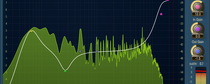
    This picture shows control points which can be dragged with the left mouse button to adjust the filter's gain and frequency (you may additionally hold the SHIFT key to enable more precise movements). Double-clicking on a control point returns it to the 0 dB gain position. You can hold the CTRL key while dragging a point to enable its gain adjust only. Holding the ALT key while dragging a point adjusts its frequency only. A control point's position fully corresponds to the state of the filter in accordance with the color displayed on the bottom of the user interface.

    If several points are selected and you double-click any of the selected points, all selected points will be reset to 0 dB.

    While dragging a control point, you can adjust the filter's bandwidth by additionally holding the right mouse button. Alternatively, you can use the mouse wheel to adjust the bandwidth.

    Pointing to a control point with the mouse cursor will cause it to be encircled with the green circle, and the corresponding filter's frequency response curve will become green.

    The orange curve on the picture above shows the summary frequency response of all currently enabled filters.

    Note that low-shelf filters are displayed as magenta in color, bell-shape filters are displayed as white in color, and high-shelf filters are displayed as green in color.


    Group editing of control points

    Control points selection

    You can also edit groups of control points by selecting them in a convenient manner. Just start dragging the control surface. In response to your dragging, a box will appear showing the selection area. All control points that enter this area become selected. Later you can move a group of selected points (encircled with a dashed line) like you are working with a single point. To add points to the current selection, you have to press the SHIFT key before starting to drag the control surface. To deselect the currently selected points, simply click the control surface anywhere.


    Linear-phase mode

    Linear-phase mode can be engaged on the '?' dialog screen. This is a global option affecting all loaded instances of HarmoniEQ plug-in. Please note that when this mode is engaged plug-in will introduce processing latency (5000 samples). This mode also uses more CPU resources overall.

    Linear-phase mode delivers a considerably more focused and crisp sound because it uses linear-phase filters on the most important processing stages.


    ?

    Pressing this button will display the plug-in's info screen. This screen shows copyright and registration information, and contains a "Help" button which opens the bundled HTML help file you are reading now.


    Troubleshooting tips and additional information


    Is HarmoniEQ a convolution-based equalizer?

    No, it is not convolution-based.


    Does HarmoniEQ introduce any latency?

    In non-linear-phase mode HarmoniEQ works without any latency. On the other hand, it does phase-shift the signal, so summing of the equalized signal with the original signal may not work properly.


    What was and is your vision when you work on creating this EQ?

    I wanted to create something 'new' in the field of EQ'ing, something which will follow the music and will emphasize the drawn EQ curve - unlike normal EQs which EQ strictly to your specifications. Harmonic enhancement was also my goal - this is usually important.


    Is HarmoniEQ doing slight program dependent compression when inserted on a track even without touching any settings?

    Yes, it is doing some compression. This compression is of harmonical nature, i.e. in the same sense as valve/tape compression, i.e. 'instant' compression.


    Special thanks go to Daniel JS Lewis for preset design.


    Happy Musicmaking!


    Copyright © 2005-2008 Aleksey Vaneev

    VST is a trademark of Steinberg Media Technologies GmbH.
    All other trademarks belong to their respective owners.
    Plug-in uses PNG library by Gustavo Huffenbacher Daud