

Contents
Introduction
Frequency/gain label
Control points
Group editing of control points
"Freehand" editing mode
Filter's frequency response curve
Spectrum plots
Red line
Output gain slider
Input gain control
Monitoring modes
Channel selector
SpectruMatch controls
SpectruMatch file options
"A-to-B" comparisons and auxiliary buttons
Vintage processor, saturator and M/S processing
GearMatch controls
Display mode controls
"?" button
Skins
Saturator's latency buffering
Spectrum inertia setting
Spectrum slope setting
Spectrum type setting
Kernel precision setting
Spread CPU load setting
Help desk and preset management
Troubleshooting tips and additional information
Welcome to the amazing world of perfect
equalization!
Voxengo CurveEQ VST is a professional WYSIWYG ("what you see is what you get")
linear phase spline equalizer. CurveEQ shows you actual filtering information:
the filter's frequency response, and both input and output FFT spectrums.
You can actually see what the EQ is doing with the sound. This, in turn,
allows you to get the best from your mix and your tracks. CurveEQ perfectly
suits the needs of mastering, and in some cases CurveEQ is suitable for use as
an in-track FX insert. Since CurveEQ is a linear phase equalizer, it offers a
very easy tuning experience. This is especially true if you want to get your
bass range right.
Besides the aforementioned features, Voxengo CurveEQ implements SpectruMatch
spectrum matching technology that allows you to perfectly transfer a
spectrum's slope from one recording to another. This allows you to `copy' a
frequency balance of existing mixes so that other mixes that are still in the
works will sound better. This technology also greatly helps in music disc
mastering, since using it allows you to easily lessen any dramatic differences
in the area of frequency balance between various tracks.
GearMatch technology allows you to transfer impulse responses of high-end
analog audio gear to your digital audio, while allowing you to adjust
frequency response freely. This results in a great improvement of sonic
qualities. With this technology, all your tracks will sound unbelievably
professional and vintage.
CurveEQ has a Vintage Processor which allows you to polish your sounds. Just
turn it on and you will get a great deal of presence effect. Also, CurveEQ
includes a compressing saturator. When it is enabled, the processed sound gets
an additional vintage feel. You can use the saturator to create professional
sounding vocal, guitar and bass tracks. In addition, it can be used on almost
any audio material, especially during the mastering process as a vintage
loudness maximizer.
The most remarkable Voxengo CurveEQ features are:
Actual filter's frequency response plot
Ease of tuning
Free-hand EQ curve drawing mode
Input and output spectrum plots
GearMatch technology
SpectruMatch spectrum matching technology
Vintage processor and saturator
Linear-phase and minimum-phase filtering
Multilevel undo
Skin support
"A-to-B" comparisons
Factory presets
Mono-to-Stereo, Stereo-to-Stereo processing
Support of sample rates up to 96 kHz
64-bit internal precision
Native assembler DSP code
Voxengo CurveEQ is a great addition to your existing professional plug-ins
collection. But if you are just starting with EQ plug-ins, CurveEQ is a great
learning tool, too - just see how spectrum gets equalized and compare it to
what you hear.
Now, plug-in's GUI will be explained.
Frequency/gain label
This label on the right - below the control surface - shows frequency and gain
at the point marked by the mouse cursor. For example, while dragging a control
point, you can precisely see what frequency and gain it has.
Control points
This picture shows control points which can be dragged with the left mouse
button to adjust the frequency response curve. Double-clicking on a control
point removes it. The first and the last points return to 0 dB gain position
when double-clicked. To add a new control point, you can double-click the
control surface in the desired position. You can hold the CTRL key
while dragging a point to enable its gain adjust only. Holding the ALT
key while dragging a point adjusts its frequency only.
Control points can be colorized with the right mouse button (they will appear
red). For example, if you have a preset with some precisely tuned frequency
points, you can distinguish them among secondary points by colorizing them.
Please note that, by default, only the gain of red points can be changed.
By holding the CTRL key you can also change the frequency. Also, red points
cannot be deleted with a double-click; they return to the 0 dB position
instead. To delete a red-colored point, it must be changed to a normal color
first.
If several points are selected and you double-click any of the
existing points, all selected points will be either deleted or reset.
Group editing of control points
You can also edit groups of control points by selecting them in a very
convenient manner. Just start dragging the control surface. In response to
your dragging, a box will appear showing the selection area. All control
points that enter this area become selected. Later you can move a group of
selected points (encircled with a dashed line) like you are working with a
single point. To add points to the current selection, you have to hold the
SHIFT key before starting to drag the control surface. To deselect the
currently selected points, simply click the control surface anywhere.
"Freehand" editing mode
CurveEQ also offers a so-called "freehand" editing mode, which allows you to
draw the EQ curve with your mouse like you are using a pen. To enter this
mode, double-click the right mouse button. In the "freehand" mode, all
control points are hidden. To return back to the normal editing mode,
double-click the right mouse button again.
Before entering the "freehand" mode for the first time, reset the
EQ curve using one of the reset options. The more points used, the
finer the drawing resolution will be.
While holding the CTRL key, you can partially reset the EQ curve to
0 db.
Filter's frequency response curve
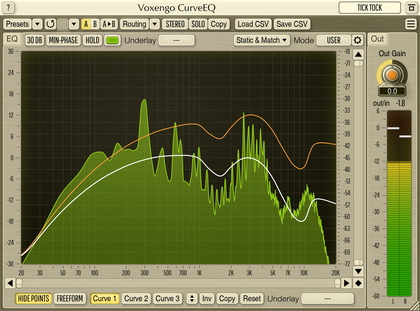
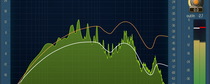
The white curve in this picture is an actual filter's frequency response.
The frequency response shows an attenuation-amplification picture for all
frequencies of the active frequency range. This is an actual picture of how
frequencies get equalized. Please note that the frequency response has a
bigger resolution than spectrum drawings.
Spectrum plots
The blue spectrum on this picture shows a FFT analysis of the input signal.
The red spectrum which is drawn underneath the blue spectrum shows a FFT
analysis of the output signal.
Red line
A red line appears when working with a sample rate below 48000 Hz. This line
shows the maximum active frequency that can currently be filtered.
Output gain slider
Using this slider, you can adjust the output level to accommodate any input
and output level difference generated during equalizing. You can double-click
on the slider to return it to the 0 dB position. By pressing the right mouse
button while dragging the slider, you can fine-tune its position.
Input gain control
The input gain control appears as a horizontal dashed line. This control is
useful when the saturator is enabled. To get this control visible, the 0 dB
baseline must be dragged first. Please note that the dashed line snaps to the
0 dB baseline if moved close to it.
Monitoring modes
The monitor selector allows you to choose which signal to monitor: Off
disables monitoring, Input enables FFT input monitoring, Output
enables FFT output monitoring, In & Out enables both
input and output monitoring.
The special monitoring mode OutAvg can be used to monitor the averaged
output spectrum. This mode is very useful if you want to get a correct
frequency balance (which is visible as a nearly straight line spectrum plot
with a constant slope towards the high spectrum end). By using the averaging
mode, you can get the frequency balance that is acceptable on most speaker
systems (including those you've never tested). Averaging restarts after every
adjustment of the response curve, so you have to wait several seconds before
doing the next adjustment. Averaging also restarts if you press the right
mouse button on the control surface.
The OutPeak mode works exactly like the OutAvg mode. The only
difference is that with the OutPeak mode the peak levels are registered,
instead of the average levels.
Channel selector
The monitor channel selector allows you to choose which channel gets
monitored. Mix enables monitoring of the mix of both left and right
channels. Left enables left channel monitoring, and Right
enables right channel monitoring.
The channel setting also selects which channel will be used during spectrum
capture process.
In Max L/R channel mode, the louder level (for each spectral bin) of
the two channels is used.
SpectruMatch controls
These buttons control the SpectruMatching spectrum matching technology
process. Initially, only the "C" (capture) button is enabled, which you
press to start the spectrum capture. SpectruMatch captures the average
spectrum of the input signal. This averaged spectrum is also displayed during
the capturing process. To stop capturing a spectrum, press the
"S" (stop) button, which will appear when capturing is in progress.
If a captured spectrum is available, the "M" button will be enabled,
which you can press to start the matching process. After pressing the "M"
button you will be presented a menu where you can choose the
number of bands you wish to get. After the desired number is selected,
the matching process will start. To stop the matching process, press the
"S" button, which will be available during the matching process. After
matching is stopped, the frequency response curve will be adjusted to match
the previously captured spectrum.
The "C" button also acts as a "clear captured spectrum" button if a captured
spectrum is available.
To get better results, it is suggested that you process several distinctive
parts of sound material.
The "Arrow Down" button can be used to attenuate the frequency response
curve. This button is especially useful when spectrum matching is used, since
it can help lessen the match equalization applied. The "Arrow Up"
button amplifies the frequency response curve, doing the opposite of what the
"Arrow Down" does.
The mouse wheel can be used to do the same as the aforementioned buttons.
Before using the mouse wheel, be sure the plug-in's GUI has focus (you can
simply click the control surface to set focus to it).
The "I" button inverts the current EQ curve.
The "F" button brings up several file-management options, which are
described below.
SpectruMatch file options
When you press an "F" button and you have a captured spectrum
available, you will see this menu. If a captured spectrum is not available,
only the "Load" option will be available.
The load option allows you to load or replace a currently available captured
spectrum with the one stored on the disk. The save option enables storing of
captured spectrums to the disk. This is useful for creating file-based
libraries of captured spectrums. Please note that after loading or saving the
captured spectrum its filename will appear on the status bar. It is impossible
to change this filename other than by saving the spectrum under another
filename.
The desired match option can be used instead of using the "M" button.
Select any previously captured spectrum stored in a file that you want to
match to a currently available spectrum. Basically, all match options behave
equally. Only the final number of created control points will depend on the
option you have selected.
For example, say you have some "rock" and "pop" spectrums stored in two files.
If you work on a rock tune and want to make it sound like a "pop" tune, you
have to load the "pop" spectrum first and then use match with the "rock"
spectrum stored in a file. Thus, your "rock" spectrum stored in a file will be
matched to a previously loaded "pop" spectrum.
You may also use the following matching algorithm:
1. Open the reference song, press C, capture spectrum for some time,
press S and then press F to save the spectrum, giving it a name.
2. Open the work-on song, press F to load the reference spectrum,
then press M, match spectrum for some time and finally press S.
You may invoke the "Spectrum Capture Tool" which allows you to capture
spectrums from uncompressed WAV files quickly, in offline mode. Specturm
capture tool features a special 'batch process' option which processes all
wave files in the specified folder.
NOTE: Captured spectrums are stored in files with
a ".cqs" extension.
"A-to-B" comparisons and auxiliary buttons
These are auxiliary and "A-to-B comparisons" buttons. The "reset"
button brings a reset menu offering different reset options. During reset,
the out gain slider is also reset to 0 dB. Special "Invert red points" option
can be used to invert points' colors between the normal and the red color.
By pressing the "xc" (exchange) button, you can exchange the current
and shadow (or, alternatively, "A" and "B") programs. The "cp" (copy)
button copies the current program to a shadow one.
Since only a single shadow program is used for the whole bank, you can use
the "xc" button to copy programs. To do so, first switch to a program you want
to copy and press the "cp" button. Then, switch to a program where you want to
put the first program and press the "xc" button.
The "U" and the "R" buttons represent the undo and redo
buttons, respectively. After every change of the EQ curve you have an
opportunity to undo changes made. The EQ curve change starts when the
left mouse button is pressed and ends when the left mouse button is
released.
Vintage processor, saturator and M/S processing
These buttons control CurveEQ's vintage processor, saturator and filter
design method.
The button that has the "VP-" label on it controls the amount of "vintageness"
added to the sound. The vintage processor can greatly improve the overall
sonic quality. It adds very strong harmonic content, and thus greatly
increases the presence effect. However, the vintage processor can be very
easily overdriven, so, please pay attention to what you hear.
There are two vintage processing modes in CurveEQ present: the first mode is
covered by values 1-3 and the second mode is covered by values 4-7. The first
mode creates harmonic content with even and odd harmonics (even harmonics
being stronger that the odd ones). The second mode mainly creates even
harmonics with a very small amount of odd harmonics.
NOTE: Values 3, 6 and 7 are EXTREME settings of vintage
processing, and, in some cases, can unpleasantly distort your sounds. The most
`safe' modes are 1 and 4. On some sounds, vintage processing won't apply since
it can create harmonics that do not sound good with the other harmonics
contained in the sound. If you have encountered such a situation, just disable
vintage processing.
The button with the "S-" letter selects the saturation mode. There are three
modes available in CurveEQ. Each mode has different a saturation curve.
Otherwise, it is difficult to describe each mode, so just try them and compare
for yourself. In some situations, one mode will be preferred over another.
Please note that when you change the saturation mode, the Out Gain and
Pre Gain controls are reset to 0 dB to exclude the possibility of ear damage.
The saturator by itself is actually a compressing saturator or limiter. Since
the compression it does is automatic and somewhat `intelligent', it has no
adjustable attack and release settings. If you ever notice that the saturator
creates a `harsh' sound, it actually means you have overdriven the original
signal to an unacceptable level.
It is suggested that you stop increasing the output gain when you start to
hear even a slight harshness. If you still wish to make your sound more
powerful, insert and tune any (preferably multiband) compressor before
CurveEQ. You can also try to change the saturation mode.
There are a few other things you should know about CurveEQ's saturator:
1. When the saturator is enabled, the plug-in will issue an additional
1.5 ms of latency. This latency won't be buffered by the audio host unless
the saturator's latency buffering is enabled. 2. When the saturator is
enabled, the plug-in will consume about 20-30 percent more processing power.
3. CurveEQ's saturator was also designed to maximize output loudness.
However, because the saturator works before the EQ section and vintage
processing, both GearMatch options and vintage processing must be disabled,
because they can adjust the achieved clipless maximization. In fact, the
saturator was designed to additionally `vintagize' the output sound, making it
warmer and softer. This saturator is also suitable for individual audio
tracks, be it vocal, guitar, bass or any other track. It is also important to
note that the saturator generates new harmonics and by its nature can sound
harsh with high output gain settings on some source signals. However,
generally it won't distort the original signal. You can read some usage
examples in the tips section here.
The button with the "M+" and "S+" options enables the mid/side equalization
mode. In this mode, the signal is decomposed into two parts - mid (mono)
component and side (stereo) component. For example, a mono signal has
zero (silence) side component. You may apply the equalization to the mid
("M+" option) or to the side ("S+" option) channel. Signal is then recomposed
back to left/right stereo components. Mid channel equalization can be used to
equalize the signal without affecting the stereo-field information.
The button with the "L-P" and "M-P" readings selects which filter type is
used. L-P means a linear-phase filter is in use. Even though it offers a
linear-phase equalization, it can sound pre-echoed (`windy') with steep EQ
curves. The M-P mode offers minimal-phase filter design, which brings
filtering mostly close to linear-phase filters, but without introducing its
excessive pre-echo. The M-P mode can also be called analog-style filter design
mode.
The recently added "2-P" filter design mode is a variant of the "L-P" mode.
This mode allows a more `open' sound in the higher frequency end. However,
it also features a kind of `warping' around 1 kHz.
GearMatch controls
These selector buttons control which gear to use. GearMatch actually allows
you to use two different devices at once. It is like the signal is being
processed by two different modules in sequence. This allows you to create a
vast range of different sounds.
It is important to note that when you select any gear, your frequency
response will be affected by it. Sometimes it is very difficult or impossible
to get a "straight line" impulse response when some gear is in use. Also, the
linearity of the phase response will go away when GearMatch is enabled.
You can press the right mouse button on the gear box to disable or to
enable the gear option it displays.
It can be very difficult to use spectrum matching when GearMatch is enabled.
In such cases, it is suggested that you chain two CurveEQ plug-ins in
sequence, with each instance performing different tasks. For example, the
first plug-in will do spectrum matching, and the second will have GearMatch
enabled. You can read some usage examples in the tips section
here.
NOTE: GearMatch
was designed to work with 44.1 kHz and 48 kHz sample rates. It is not
guaranteed to work well with lower and higher sample rates.
Display mode controls
With these buttons you can adjust the visual appearance of the CurveEQ
plug-in. The selector with the "+/-" allows you to select which scale the dB
grid has. For finer adjustments, you can switch from the default "+-30 dB"
scale to some other scale.
The topmost selector specifies the visible frequency range. If you need to
define a control point's frequency more precisely, you can switch to the
necessary frequency band.
The button with the "S" and "H" states is used to show and hide the scale
grid on the control surface. Hiding this grid can be useful if you have
already become accustomed to it, since without this grid, the control surface
looks clearer.
"?" button
By pressing the "?" button, you can see plug-in and copyright
information and various global controls.
Skins
After pressing the "?" button, you will see these two buttons. The
"Change skin" button can be used to change the appearance of the
CurveEQ plug-in. After pressing it, you can select any file with the ".csk"
extension. You can see and select the sample skin file "bw.csk" in the
"skin_bw" folder where you have installed Voxengo CurveEQ VST. To create your
own skin, you can copy the contents of the "skin_bw" folder to another folder
and alter the files in it. The original "bw.csk" file is commented so you can
see in it what to do to create your own skin setting.
Skins offer a very different plug-in experience. If you have many different
skins, you can choose any that suits your mood or mood of the project you're
working on. This will help you to work more productively.
The "Set default skin" button can be used to restore the original
"dark gray" CurveEQ's skin. Please also note that you initially cannot change
the copyright panel that appears when you press the "?" button.
Saturator's latency buffering
After pressing the "?" button, you will see information about the
state of the saturator's latency buffering feature with the ability to change
it.
Please note that after the state is changed to "enabled" or "disabled", the
plug-in must be restarted. In some cases, the host audio application must be
also restarted.
This setting is global and applies to all instances of the CurveEQ
plug-in.
Spectrum inertia setting
This global setting will be available after pressing the "?"
button.
You can adjust this setting if you feel the current spectrum inertia is not
comfortable for you. The higher the value, the less dynamically the spectrum
updates. This setting does not affect the both OutAvg and OutPeak spectrum
monitoring modes.
Spectrum slope setting
This control allows you to adjust the spectrum analyzer display slope towards
higher frequencies. This can be useful because higher frequencies are usually
much weaker than lower frequencies, and thus tuning them can be a difficult
task. By choosing an appropriate slope setting, you can compensate for this
behavior and make the spectrum plot more convenient and meaningful.
Using slope compensation can also be benefical if you have started mastering
from scratch. For example, after adjusting the slope setting to "+3 dB", your
goal will be to get a nearly horizontal average frequency response. If you
have it that way, you will be sure that the higher frequencies' power drops
with the speed of -3 dB per octave.
Spectrum type setting
You can select the spectrum plot's resolution here. 1/3 oct means each
octave will be represented by three bands on the spectrum plot.
Kernel precision setting
This is a very special setting which affects the filter kernel building
procedure. This setting is especially useful if you are dealing with more
than 4 control points. The higher this setting in magnitude is the more
precise the curves become, in average. However, this also affects the
calculation times. I.e. with large precision EQ curve display response may
become slower. This setting also subtly affects the general sound of the
equalizer and so, you may use this setting as a creative instrument, too.
Versions prior to v1.9 had built-in kernel precision setting equal to
250. Version v1.9 had 330 as the built-in setting.
Spread CPU load setting
Enabling "Spread CPU Load" setting allows CurveEQ to spread its CPU load in
time. This potentially allows you to use more CurveEQ instances at the given
audiocard latency, or to use lower audiocard latencies.
Please note that after the state is changed to "enabled" or "disabled", the
plug-in must be restarted. In some cases, the host audio application must be
also restarted.
Also note, that when this setting is enabled it adds 1024 samples to
plug-in's total latency.
This setting is global and applies to all instances of the CurveEQ
plug-in.
Help desk and preset management
Using these buttons you can invoke HTML help. Help Desk
button brings a panel with description of all buttons. You can
also bring this panel by pressing the "?" button while holding
the CTRL key pressed.
You can use the "Preset..." menu button to perform basic FXP/FXB
preset/bank management tasks. The "Set as default" menu option of
the "Presets..." menu allows you to assign the currently loaded program
to the default preset program. This default program will be loaded whenever
you enable a new instance of the plug-in or reset the current program. You can
use the "Reset default" option to restore the default factory
preset.
Troubleshooting tips and additional
information
What is that wavy response?
This is called frequency response ripples. These ripples are generated mostly
in the lower frequency range when the response curve's transition is very
steep. You can get rid of these ripples by making the transition less steep,
or you can leave them untouched since it is rather possible that they do
nothing wrong to the final sound.
While adjusting control points, the plug-in issues CPU usage bursts.
This is normal since after the control point has changed its position, the
frequency response must be recalculated, and this recalculation is a rather
CPU-consumptive operation. After recalculation is complete, the CPU usage will
return to normal.
What dB scale does the spectrum plots have?
The spectrum plots must not be measured with dB figures that are present on
the control surface. Spectrum plots are scaled to be able to represent 100 dB
space. So, if spectrum plot is near the bottom of the control surface, it has
roughly -100 dB power. If it is near the top of the control surface, power is
near 0 dB.
Why does the spectrum display update slowly?
This is because the VST host application you are using has a large plug-in
processing block size. If the host application allows you to change it, you
can set it to 2048 samples or less. That is, if the block size is larger,
CurveEQ is unable to update the spectrum frequently enough.
The second possible problem is speed of your computer. For best performance,
CurveEQ requires any computer of the latest generation.
Aren't all linear phase equalizers equal?
Actually, no. They all are different:
They might use different windowing functions which alter the overall sound
very considerably.
They might use different filter kernel modeling approaches. Some try to
recreate filters from analog domain while achieving linear phase response, and
others use different design techniques.
They have different window sizes.
They use different convolution methods. Some convolution methods can create
very small distortion if they use FFT and 64-bit processing, while others can
introduce distortion if they use `brute' convolution and 32-bit
calculations.
They all vary in execution speed, depending on convolution and filter
design methods used.
Is it possible to chain several CurveEQ plug-ins?
Of course, it is possible if your audio application allows it. Moreover,
it is suggested to do chaining if you wish to have additional control over
equalization. Since CurveEQ uses a large (2048 points) linear phase filter
kernel, it does no harm to the original sound, so even if you chain two or
three CurveEQ plug-ins, they will react to the final sound much like one
single plug-in.
What are the latency numbers in milliseconds?
If your audio host or plug-in adapter does not support delay buffering,
CurveEQ will issue the following sample delay:
44100 Hz - 69.6 ms
48000 Hz - 64.0 ms
88200 Hz - 34.8 ms
96000 Hz - 32.0 ms
These numbers are applicable when the saturator's latency buffering is
disabled and the saturator is not enabled. If "Spread CPU Load" setting is
enabled, this will also add additional 1024 samples to the latency.
Why do I get pops, clicks and glitches when using CurveEQ?
CurveEQ uses a large processing block size (2048 samples) which creates
effective latency of 3072 samples (or more). If your audiocard latency was
set to value less than 2048 samples (e.g. 256 samples) CurveEQ will generate
CPU usage bursts every 8 blocks (for 256 samples audiocard latency). If your
computer is not fast enough, you can experience pops and glitches in audio
playback. You can solve this problem by increasing audiocard latency to 2048
samples or more, or upgrading your computer. Enabling the "Spread CPU Load"
global setting may also help in this situation.
Even though CurveEQ can be used as a track insert equalizer, it is
aimed to be used mostly for mastering, in two or three instances per project.
During mastering a large audiocard latency is not a problem in most of the
cases.
The response curve that is displayed after the MATCH process is run on
a new wave is the result of the adjustments made, taking into account the
source wave's captured spectrum and the target wave's current spectrum, and so
can only apply to the target wave and no other, right? So, there's no point
saving the matched response curve for use with other waves.
Yes, of course.
It is the state the first time when the "Captured spectrum is
available" appears that you need to use to run the match process with any new
target wave, and it is this configuration that needs to be saved as a preset
for use with subsequent files?
Yes, precisely. You can also use spectrum file options for
additional convenience.
An interesting problem occurs when you try to use CurveEQ with
SoundForge through FXpansion's VST-DX adapter. SoundForge does not remember
the configuration of CurveEQ when it is closed to load the new wave. So there
is no way of saving and restoring the "Captured spectrum is available" state
before matching to the new wave.
It is a problem with SoundForge not being willing to internally update a
preset if no parameters it sees (OUT in case of CurveEQ) were changed. It can
be solved by touching the OUT slider up and down (this is important) and
pressing the OK button to start processing. Processing can be immediately
stopped or later discarded, it is only necessary for SoundForge to remember
the preset.
Can I have a quick tour of CurveEQ's features?
There are four sections in CurveEQ available that you can master. The best
start for a new user is to experiment with the first two options only. Once
you feel familiar with these two options you can go on further.
1. EQ section. Double-click somewhere in the window to create a filter
(EQ control point). Clicking this point with the right mouse button locks its
frequency for easier control.
2. GearMatch section. Here you can choose an impulse response of some very
famous studio gear. The result is that CurveEQ gets the coloring of that
device! Gear options only recreate specific coloring and character of the
device and not its dynamic non-linear characteristics like compression and
distortion.
3. Vintage section. Consists of a simple but effective mastering limiter and
a VP section that adds harmonics to the sound much like any vintage equipment
does.
4. SpectruMatch section. Here you can capture the overall spectral EQ balance
of any sound material and transfer it to another sound source. This works
especially well when you transfer the EQ balance from some famous and proven
record to the music piece you are working on.
Are there any tips on using saturation?
The main goal of the compressing saturator that is built-in into CurveEQ is to
additionally "vintagize" the sound and make it slightly more non-linear,
sparky and powerful. The saturation is processed before the EQ section,
allowing you to edit any frequency balance change introduced by the saturator.
The saturator saturates towards the 0 dB level.
You can use the "Loudness Maximizer" preset for limiting. This makes CurveEQ
not only an EQ plug-in, but also a flexible limiter that allows to attenuate
higher frequencies that tend to be overamplified during limiting. The best
use of CurveEQ during mastering would be chaining two CurveEQ plug-ins in
sequence: the first would do equalization and the second would limit the
output of the first.
A good example of the saturator's flavor usage is the "Lush Colour" preset.
It does not affect dynamics considerably, but adds much while subtle
distortion creates a rather vintage "dark and sparky" sound overall.
Are there any tips on using the gear options?
You can use the gear options to give the music the coloration of the device
that was previously sampled and included as a gear option. The device's
settings that are commonly used in studios were sampled.
The best way to use gear options is to chain two CurveEQ plug-ins in sequence.
The first plug-in would be used for making EQ adjustments to your music, while
the second one would be used to give it the sound of the sampled device. Just
choose the gear you want on the second and it will do the trick. You can also
use only a single CurveEQ plug-in without any losses other than of adjustments
convenivence.
Now we will describe some gear options:
1. Compressors (Compr) and Tapes. Use them after a software compressor to
give your sound the touch of a real compressor device. You can also use
CurveEQ's compressing saturator instead of another compressor. These options
can also be used without a compressor for altering the sound of your music.
The tape gear gives you the feeling of tape saturation and sound smearing and
works very well. The tape gear is also very well suited for acoustic
instruments. You can do complete mixes with these options if you like.
2. Tube options can give your music a sparkle associated with real tube gear.
Most of the time they work much more convincingly than many well known
software simulators. With some options, the effect is rather difficult to hear
if you are not used to tube coloration. You have to experiment with these
options and carefully listen to the results. This works great on vocals and
instruments. But, of course, you can do complete mixes with these.
3. The enhance presets are designed to fine tune your music at the final
stage. You can see that the low and mid EQ curve parts are already amplified.
By fine tuning these, you can give the right balance between the lows and
highs at the final stage.
4. Sonic and vita gear options are alse meant for the final stage. Vita
options can create fuller and richer sound. This also works great on vocals
and instruments. Search for the right EQ settings here. The sonic effect is a
subtle improvement. It can make dull recordings sound better.
An example:
Make three points: 1 at 60 Hz +3dB, 2 at 550 Hz +1dB, and 3 at 4000 Hz +4dB.
You have created three filters, Low, Mid, and High. Now select "*Vita D" in
the Gear B section and listen carefully to what it does. The effect is subtle,
but you can hear that the sound becomes richer. If you don't have good
monitors, use headphones. Now section "*Tube E" in the Gear A section. This
adds a tube twinkle to your music. Experiment with the 4000 Hz filter to make
it clearer. Experiment further with other gear settings.
NOTE: Gear options with asterisk "*" are
"straightened" copies of options without such asterisk. Original options can
have an uneven frequency response, which can be difficult to adjust. Options
with asterisks solve this inconvenience, straightening the frequency response,
while preserving the original option's coloration.
I have noticed that the saturator still allows values higher than 0 dB
to pass. Is that the way it's supposed to work?
Actually, yes. The saturator is not a 100% brickwall limiter, so it might give
some slight overshoots. These overshoots won't do anything wrong, actually.
Also, since the saturator works before the EQ section and vintage processor,
both GearMatch and vintage processor options must be disabled. GearMatch
options adjust the phase of the signal, and this cancels any saturation
effect of the saturator, allowing for new peaks to appear. The Vintage
processor does almost the same thing. The EQ curve itself can be changed in
the high range only. Changes in the low end will affect peaks, too. Please
check out the 'Loudness Maximizer' preset for a demo of the intended use of
saturator for general signal limiting.
It is also important to know that at output gain settings equal to 0 dB, the
saturator won't reach the maximum signal path's amplitude, so the output gain
setting must be additionally increased to 1-1.5 dB. The amount of the needed
gain depends on the saturation mode used. At this step, it is possible to
exclude extreme overshoots.
What about GearMatch, is that only an additional EQ curve?
It is not only an EQ curve. The main effect of GearMatch is phase adjustment.
You might not see it on the frequency response graph, but if you listen to the
different GearMatch options, you may notice the change in coloration.
Why does CurveEQ need more CPU when the saturator buffering is
enabled?
CurveEQ needs more CPU time because of the additional buffering needed.
CurveEQ runs the processed signal through a ring buffer, and thus needs
slightly more CPU time. Actually, it will only need a little extra CPU time,
so there should be no problems with it. Of course, when possible it is always
a good idea to disable it.
While I'm capturing the EQ of my source file, I see the EQ curve in the
window. However, when I click on the "S" button, the curve goes away. As I
continue in the process, I'm able to see the curve of the destination file.
However, when I click the "M" button, the curve goes away. I see the new
correction curve created by CurveEQ, but not the source or destination
curves.
During capture/matching process CurveEQ shows spectrum analysis and not the
actual curve it is going to use in the end. What you get after completing the
matching process is the correction curve which CurveEQ is aimed to create.
You can tweak this curve further to make it more suitable for your program
material.
Does CurveEQ auto-compensate for changes in sample rates when using
GearMatch impulses? Example, your impulses are 44KHz, but you want to process
a 96KHz file, do you run into issues?
Not necessarily, but the built-in impulses were sampled at 44.1kHz,
and so they will work good with the sample rates close to 44.1kHz only.
Today I did an EQ adjustment on a 44.1kHz file, but later I needed to
upsample it to 96kHz. I noticed that the SAME settings I used in CurveEQ on
the EXACT same file that is now 96kHz sound a lot different (i.e. it seems to
boost more or less on some bands).
This is a known issue which cannot be solved due to technical limitations.
This means you cannot seamlessly migrate with your CurveEQ settings between
44.1kHz and much higher sample rates.
While I was reading the manual regarding GearMatch I came across
something that is confusing. From what I thought, GearMatch was basically the
freq curve of a piece of hardware derived from an impulse response. Yet in the
manual it talks about the fact that the GearMatch wont have a perferct
straight line response, and that this is hard if to achieve. Why would you
want a straight freq response in the first place? Is there something else
GearMatch is doing besides chaging the sound via the freq curve? It seems to
me that if you did have a GearMatch with a flat freq line then it wouldnt do
anything to the sound.
The most intriguing in gear options is phase adjustment. So even if curve
will be a straight line, phase response will be shifted. And so far it works
good.
Automating VST parameters. Will this be available in future options?
I was taking the EQ and going nuts on some loops and it sounded pretty wicked,
it would be awesome if these sort of motions could be smoothly automated for
filter sweeps, dynamic effects etc.
Unfortunately, this kind of task not possible to perform with CurveEQ due
to its complex preset structure which cannot be simply exported to audio host
software to perform smooth automation. Another problem is that CurveEQ
processes large chunks of sound not allowing for very smooth changes.
Changes will be highly discrete. The other thing about this is that updating
EQ curve is a very time consuming task, so adjusting it in real time will
require much CPU power. I guess if you get something really useful tweaking
CurveEQ in realtime, you could record it live for future use.
Everytime you use a Spectrumatch Curve on a Sound (for example
sounds with hard attack like Bassdrums, Snares) you have a Pre-Echo shortly
before them, like they fading in a bit before the real attack comes in. Try it
and tell me if its Fixable, it sounds all very washed because of that.
That issue isn't directly related to SpectruMatch. CurveEQ is linear-phase
plug-in, so it introduces pre-echo in any case. This 'pre-echo' can be heard
only if you are using very steep EQ changes (this is common when using
Spectrumatch), it sounds like a 'flute wind' and is most heard on transients.
You have two options: whether make the EQ change less steep or enable the M-P
(minimum-phase) mode which transforms a linear-phase filter into a
minimum-phase (analog) one without that pre-echo effect.
I have noticed that after I match a mix w/CurveEQ and then save the
match it often seem to get dull and lose the high end and sparkle. It sounds
great until I save. Am I doing something wrong? Here is what I am doing.
I play a cd that has great eq. I capture the eq. I then play my new mix and
let ceq match it. Sounds great here. I then hit S to save and the sound
becomes dull and muted. whats up with this?
During matching CurveEQ does not adjust your signal. And after you press
'S' (for the second time) it builds the matching curve. It is likely that you
get a wrong matching curve, or this curve must be adjusted further. Matching
does not always give good results, and you must have a strong experience in
it. Otherwise it is easy to get wrong results.
I have a stereo audio track in Cubase SX which I'd like to have the
frequency-spectrum of a deep purple song. So captured the spectrum the purple
tune and save it as a file (dp.cqs). Now I would like to apply this
freq-spectrum to the stereo audio-track. I inserted CurveEQ as a master
effect. Now how do I go on to get what I want?
When you have dp.cqs saved, you will need it to load in CurveEQ on the
track you wish to be equalized similar to DP (using the 'F' menu). After
spectrum is loaded, simply hold the 'M' button, select the desired number of
bands and the matching will start. After some matching time press the 'S'
button and CurveEQ will build a matching curve which you can adjust
further.
I set the dB scale from the default +/- 30dB to +/- 6dB but the visual
size of the real-time spectrum that is shown didn't change along with the new
scale size. Shouldn't the spectrum match the dB range of the grid?
dB scale of the spectrum always stays the same (on the top you have 0 dB,
on the bottom you have -100 dB). It is not usually useful to change the scale
of the spectrum.
I want to take one song's EQ parameters and transfer them to a new
song. Can I do that?
I guess you can. Please, read the 'SpectruMatch' topic of this manual.
Do the Filter type (L-P, M-P, 2-P) setting affect the capture or match
during SpectruMatch?
No, this setting does not affect the capture nor the matching.
I use Logic 5.3 and when inserting the CurveEQ plug-in my sounds change
their timings, they go off beat.
CurveEQ issues a latency and unless your host application can buffer it
you'll get some timing change. Seems like Logic 5.3 you have simply does not
buffer plug-in's latency.
Are gear selections effected by the input or output gain adjustments in
the same way saturation is effected? Does increasing the input gain to a gear
selection bring those characterisics out more?
Gear selection affects the output in the same manner as EQ affects it.
Input level does not affect the character of a gear option.
I've found that using the +3dB slope, as recommended in the manual, is a
terrific guide for balancing the upper octaves correctly. Is there a similar
recommendation for the bottom octaves?
In most cases there should be a slight dip below 100 Hz approx. (all the way
to about -8 dB). BTW, +3dB is a too 'steep' compensation which can yield too
bright mixes, depending on the circumstances. +4 may give better results in
these cases.
What is the SpecTool.exe file that is in the plugin's folder?
SpecTool.exe can be invoked via 'F' button menu. It is safe to run it out
of the folder. It is a spectrum capture tool.
Freehand mode question. I often need to reset a certain frequency range
to 0 dB, when trying different EQ settings. How can I do this?
You may switch to a conventional mode and select control points you
wish to reset to 0 dB and then doubleclick any of these selected points.
Another option is to hold the CTRL key while drawing in the freehand mode.
I am trying the CurveEQ Spectrum Capture and Matching functions using
Wavelab. My question is: can I run the capture and the matching part of the
task also through WL's Render, or does it have to be done 'real time'. I've
tried using Render with Capture, but it doesn't seem to do anything.
WaveLab won't allow this, because for Render it creates a new instance of
the plug-in while both capture and matching--when armed--need to run in the
same instance where they were armed. This problem can be resolved using
the spectrum capture tool accessible via the 'F' menu. By the way, in most of
the cases you don't have to match the whole audio file. 20-30 seconds usually
does the job.
From time to time I've noticed a really great feature especially after I
do a Match and there is an EQ curve in the viewer window. If I adjust the EQ
curve up or down it seems that the changes are compensated in some
way.
Up/down arrows actually amplificate/attenuate points around the 0 dB line.
This means, they don't 'move' points and if some control points were near 0 dB
line, you won't see any change there. You will get most change on the points
with a large dB setting (positive or negative). Attenuation following
the amplification negates the effect of this prior amplification.
I would like to know if the compressor saturator in CurveEQ is processed
as linked stereo or independant left and right compression (dual
mono)?
Saturator in CurveEQ works in dual mono mode.
What is the difference between gear with and without "*"?
Options with an asterisk have a 'straighened out' frequency response, with
a minimum number of dips and notches so that only the original phase response
is preserved.
Just wanted to point out that some gear in the gearlist inverts
polarity.
I do not think that polarity change can be avoided - some gear options
shift frequencies very much and that cannot be simply compensated.
If I want to equalize the Mid and Side separately, do I need to use 2
CurveEQs in series, one in M+ mode and one in S+ mode?
Yes, exactly. That's probably not very convenient, but CurveEQ in its
current state is not capable of handling two EQ curves simultaneously.
I glanced through the CurveEQ manual, but I could not figure out how
access the function that allows "drawing" of an EQ curve freehand.
First of all, you have to reset the EQ to 60 or less bands. Another step is
to doubleclick the right mouse button on the control surface. Control points
will be hidden meaning freehand mode is active.
I usually use Sound Forge and Cool Edit (Adobe Audition now) and wanted
to try the demo of CurveEQ, but neither program seem to recognize the CurveEQ
plugin. What programs are compatible with CurveEQ?
Program should support VST plug-ins to be able to load CurveEQ.
In SoundForge and Cool Edit you should use a VST-DX adapter plug-in like
Cakewalk VST Adapter. This also allows you to load Voxengo plug-ins. By the
way, CurveEQ works in Adobe Audition 1.5 - this now supports VST
plugins natively without having to use an adapter.
The VST wrapper supplied with my host application won't let me load .fxp
files into CurveEQ. What should I do?
You may use the built-in Voxengo preset manager to load/save .fxp
files.
I thought I read somewhere that you can't use the Vintage, Saturation
and Gear options all at the same time.
It is possible to use all these features at once. Saturation and Vintage
modes work in series: Vintage then Saturator. EQ (and Gear options) is applied
next. So, it is not a problem to use all these features as long as it sounds
right.
If I want to master a set of songs which are all part of an album, would
it make sense to take the spectrum of a template song, save it in a file, and
then use it to master all the tracks matching the template spectrum?
Yes, you can use CurveEQ to spectrally match all tracks to a single track
that way (by capturing a single 'template' spectrum and matching other tracks
to it). Of course, this should be done with care - not just in a 'match and
forget' manner.
I'm wondering how many adjustments or eq bands CurveEQ can use with
SpectruMatch - basically how high the resolution of the filter is, and how
accurate the translation can be?
CurveEQ's resolution is pretty high (60 bands). But of course, that is not
the main point - in most cases lesser number of points makes a better job.
CurveEQ allows you to choose the number of points to use for matching.
How accurately can the bands be placed when using SpectruMatch?
Spectrum matching in CurveEQ works on the uniformly-spaced points. But you
can also do manual editing.
Could you say something about CurveEQ's tape setting - where does it
come from, how does it work, some technical background, do I need a
tapemachine for the orginal sound?
Tapes are known for their complex smearing effect. Indeed, Tape B gives
some kind of tape coloration. However, actual tapes apply various other
effects (like saturation) which cannot be recreated by an equalizer alone.
So, if you have a tape machine nearby it is by all means better to use the
real thing.
After reading the instructions I am unclear on whether this program can
display the average spectrum of a stored noise band .wav file, which I need
for calibration purposes.
CurveEQ cannot display the captured spectrum file - it can only be used for
matching and creation of a matching EQ curve. When the destination spectrum
file is loaded, CurveEQ displays "Captured spectrum is available" status
text.
Is it possible to equalize each channel (left and right) separately at
the same time?
CurveEQ does not allow you to edit EQ curves for L/R channels
separately.
When CurveEQ does not allow to adjust each channel separately, what
function do buttons "left", "right" "mix" have?
'Left', 'Right', 'Mix' are spectrum display options, this does not affect
equalizing.
I played around with CurveEQ. I'm trying to use it for equalizing my
CDs, which I imported as WAV files into my computer. When a CD is recorded
very loud, then, when switching CurveEQ on, I can hear some distortion.
With not so loud recorded CDs there is no distortion or clipping. What can I
do to avoid that?
I suggest you to decrease the Out slider in such cases. Otherwise it is not
possible to get rid of the distrotion on loud sounds. Or you may also try
using Voxengo Elephant mastering limiter for smooth peak limiting.
Why would using 60 bands for SpectruMatch be worse than 30
bands?
When using 60 bands this may create too large 'dips' and 'notches' which
may sound 'wrong'. With less number of bands the matching curve you get is
smoother and thus usually sounds better. The exact number of bands to use
depends on the material you are processing. Music may benefit from lower
number of bands while individual sounds may still sound good with a larger
number of bands. Just try it for yourself.
What is the difference between a slope of 3.0, 4.0, and 5.0?
Slope is just a parameter which affects visual transformation. It kind of
rotates the whole spectrum counter-clockwise for easier visual spectrum
evaluation. So, with Slope 5.0 spectrum counter-clockwise rotation is greater
that with Slope 3.0. Slope is defined in Decibels Per Octave. That is -
amount of decibel adjustment per octave of the spectrum.
How Spectrum inertia affects the sound?
Spectrum intertia does not affect the sound - it's just a helper for you.
If you like fast-moving spectrums then use lower intertia otherwise use a
higher inertia setting.
I am still struggling with the balanced spectrum plot and what it
visually looks like. I have attempted to adjust points so that the plot is
"almost a straight line" with HORRIBLE results..way too much high, not enough
bass, weak mid range. If I'm suppose to be looking for something specific I'm
not seeing it. What should I look for?
I think I was not too precise by saying spectrum should be an 'almost
straight line'. It should look more like an 'inverted smiley', with roll-offs
below 80 Hz and above 12kHz, and a slight wide bell shape boost centered
around 700 Hz or so. There should be no definitive dips and notches - that's
for sure.
When I insert CurveEQ into SONAR I am unable to playback a project - the
audio engine will not start. Has anyone else seen this issue?
You will probably need to increase playback latency. This quick 'dropout'
can happen on very small audio card latencies. Just for your information,
latency should be increased when you are using CurveEQ because CurveEQ
processes audio in blocks. It first collects audio data, then processes it.
That is why it causes CPU load bursts that may cause drop-outs at low
latencies.
Does it matter if the spectrum line is above or below the center (zero)
line, or do I need to have it centered in order to have a balanced
mix?
No, this does not matter: how close spectrum is to the center line only
depends on the overall volume.
Happy Equalizing!