Voxengo - Sound with a Soul
Professional VST PlugIns and
AU PlugIns

Support Forums Shopping Cart
Equalizer Plugins Compressor Plugins Saturators, Guitar Amps All AU, VST Plugins Reverbs, Spatial Imaging Mastering Plugins Harmonic Enhancers Free VST, AU PlugIns Track Plugins Delay, Echo, Modulation Utility, Denoising, Analysis Drum and Cymbal Samples
A great real drum track for your song @ Voxengo studio - Hear examples now
Forums     Discussions     Announces, Releases and Discussions
Voxengo CurveEQ 3.0 spline equalizer plugin released

Reply    New topic    Search   

Voxengo is pleased to announce the release of CurveEQ version 3, a spline equalizer plugin for professional music and audio production applications, available in AudioUnit and VST plug-in formats (including native 64-bit support), for Mac OS X (v10.5 and later), and Windows computers.
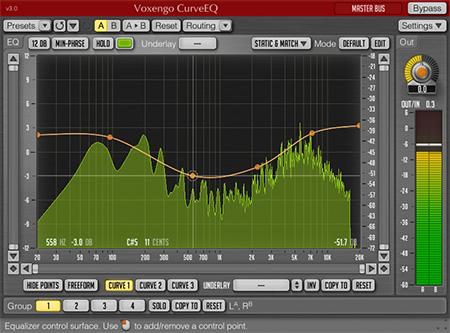
Voxengo CurveEQ 3.0 Screenshot

CurveEQ shows you the actual filter response you are designing by means of a spline (a smooth curvy line), so you can actually see what the EQ is doing with the sound.  This, in turn, allows you to get the best from your mix and your tracks.  CurveEQ perfectly suits the needs of mastering, and in some cases CurveEQ is suitable for use as an in-track equalizer.

CurveEQ implements spectrum matching technology that allows you to transfer spectrum’s shape of one recording to another.  In other words, this allows you to “copy” frequency balance of existing time-proven mixes so that other mixes that are still in the works may have a chance to sound better.  This technology also greatly helps in music mastering since using it allows you to easily lessen any dramatic differences in the area of frequency balance between various tracks.

CurveEQ’s filters can be switched between linear- and minimum-phase modes.  CurveEQ also features a deeply-customizable spectrum analyzer like the one found in Voxengo GlissEQ and SPAN plug-ins.  You may also display, save and load static spectrum plots for comparison and matching purposes.

CurveEQ features:

  • 3 EQ curves per channel group
  • Linear- and minimum-phase filtering
  • Spectrum matching
  • Freeform EQ curve drawing mode
  • Real-time FFT spectrum analyzer
  • Stereo and multi-channel processing
  • Internal channel routing
  • Channel grouping
  • Mid/side processing
  • 64-bit floating point processing
  • Preset manager
  • Undo/redo history
  • A/B comparisons
  • Contextual hint messages
  • All sample rates support
  • 53 ms compensated processing latency

CurveEQ 3.0 added the following features since version 2 (version 3 can be used in projects alongside version 2):

  • 3 EQ curves per channel group
  • Spectrum display zooming
  • Window resizing
  • Up to 96kHz spectrum range
  • Multi-channel support
  • Multi-platform support
  • Routing matrix
  • Preset manager
  • User interface re-scaling
  • Channel grouping
  • Plug-in instance naming

Introductory price of USD 79.95 will be effective for three weeks from now, which is 20% off the regular price of USD 99.95.  Upgrading from the previous version costs USD 39.95 if previous version was purchased earlier than 180 days from now: otherwise the upgrade is free during this grace period.  Demo version of CurveEQ can be downloaded freely at the Voxengo web site: http://www.voxengo.com/product/curveeq/

I've been putting off purchasing this plug-in, waiting for this release.  It certainly does not disappoint - very nice work, thank you very much.

One little suggestion: when using the Matching function with music, it only makes sense (as you point out in the manual) to have the Spectrum Display set to AVG or MAX, so that the spectrum can accumulate an average over time.  However, when sampling the spectra from various sources, it would be handy if there were some way to "clear" the averaged spectrum in the main display, so that a new one can be taken.  Yes, you can go into the Spectrum Mode Display to cycle between AVG and RT AVG and then back again, but that involves several mouse moves/clicks.

Could there be any way to put some controls right in the Static Spectrum Editor - perhaps duplicating the primary and secondary spectrum mode buttons from the Spectrum Mode Display, so that clearing a previously sampled spectrum could be achieved a little more quickly and easily?
Frank Lockwood
Lockwood ARS
Quality music recording services for classical and acoustic music.
Toronto, ON, Canada

Host DAW: Merging Technolgies' Pyramix 7.1.9
System: Windows XP SP3 on iMac (6.1) and MacBook Pro (3.1) computers running Bootcamp 2.1.
Voxengo Plugins owned: Curve EQ, Deft Compressor, Elephant, GlissEQ, HarmoniEQ, LF Max Punch, Polysquasher, Soniformer, TransGainer, Voxformer; also Convolver.

Spectrum can be reset by single-clicking on the control surface.

Been a longtime user of the original, loving the update, but also missing some old features: Maybe I missed it, but I can't find any way to raise/lower all points together like before.
The one I miss the most is the ability to open a WAV & have it silently captured without playing.  Having to sit through an entire song now makes this like the old Steinberg Freefilter, which is a step back.
Also, I find the wording of the spectrum match panel extremely confusing! "Reference" & "Apply To" would be much more easily understood as "Source" & "Target" or "Mater Curve"/"Slave Curve", etc.  Because of the confusion, I discovered I was doing it backwards.  Wasn't until I flipped the spectrum that I found out.
Thanks for your great work & forr listening to your users!  I look forward to anything you make!

-Patrick

You can raise/lower the points - there is a button available for that function.

I plan to reimplement the "batch spectrum capture" in a future update.

Source/Target wording is also confusing as is "Master/Slave Curve", unfortunately.

Thanks Aleksey, glad to hear spectrum capture will return!
I definitely need more time to learn the new workflow, but to be fair, I have read the guide thoroughly, (As I always do) & I have the plugin open right now, studying every facet of the interface - but I still have absolutely no idea where to find the button you mention.
I will continue experimenting & learning the workflow.
I love the quality of the new, but miss the direct simplicity of the old.

Thanks!

That spectrum scaling button is located near the "Inv" button.
Reply    New topic    Search   

Post your reply

You are not logged in.
Log in 

Copyright © 2002-2012 Aleksey Vaneev - Terms of Use - Privacy Policy - About Voxengo - Questions & Answers