Contents
Introduction
Gain reduction display
Preset management
Knob control
Mode selector
General plug-in information
Troubleshooting tips and additional information
Transparency for mastering
Transparent compression action is a cornerstone for any mastering
compressor. Transparency is necessary to preserve all existing elements in the
mix, while compression itself is necessary to make the mix sound uniform to
other mixes (tracks) and to make it sound more solid. Artistic dynamics
adjustment also requires a high degree of transparency from the compressor.
This allows the user to retain the original signal's clarity, while
improving its dynamics.
Voxengo Polysquasher was designed with these things in mind. It offers

a highly transparent compression performance and a high level of control, with
only a minimum number of adjustable settings available at users' disposal.
This makes it ideal for common mastering applications.
Its unique-to-date compression technology--which gives an unprecedented
compression transparency--additionally allows the user to give a very special
`touch' to the signal being processed. It subtly tightens the low end and
reveals the high end, creating a special `fresh' sound.
To sum up, this is a very interesting PC VST compressor plug-in. Its
compression effect can be slightly disorienting for the first time, since it
differs from the other compressors greatly. But after some time of use, its
performance will be OK for you.
Polysquasher's features:
Transparent sound
Real-time gain reduction scope
Variable knee
Three operation modes
High-pass side chain
"A-to-B" comparisons
Factory presets
Mono-to-Stereo, Stereo-to-Stereo processing
Sample rates up to 192 kHz supported
64-bit internal precision
Native assembler DSP code
GUI information.
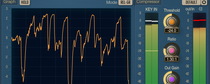
Gain reduction display
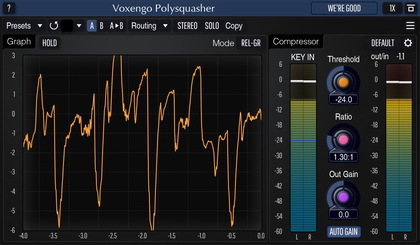
This is the real-time gain reduction scope display (when the
Mon Gain monitoring option is enabled). It shows the peak gain
reduction values which occured during the last four seconds of processing.
Maximum reached gain reduction is displayed right above the "0 sec" label.
This gain reduction value changes adaptively, showing the maximum reached
gain reduction value during the last four-second time frame.
Horizontal line shows the average gain reduction level for the
last four-second time frame. The actual average gain reduction
value is displayed in the top right corner of the display.
You can use this value as a make-up gain value you can
set with the "Out" knob.
When the "Mon In" monitoring option is enabled, the gain reduction
display shows the input signal (absolute linear values) in black and the
relative output signal in red. The Current Out Gain value also affects the
visible output signal plot.
Preset management
You can use the "Preset..." menu button to perform basic FXP/FXB
preset/bank management tasks. The "Set as default" menu option of
the "Presets..." menu allows you to assign the currently loaded program
to the default preset program. This default program will be loaded whenever
you enable a new instance of the plug-in or reset the current program. You can
use the "Reset default" option to restore the default factory
preset.
By pressing the "A|B" button, you can exchange the current and
shadow (or, alternatively, "A" and "B") programs.
The "Copy" button copies the current program to a shadow one.
Since only a single shadow program is used for the whole program bank, you
can use "A|B" button to copy programs. To do so, you first need to switch to
a program you want to copy and press the "Copy" button. Next, switch to a
program where you want to put the first program and press the "A|B"
button.
The "Reset" button can be used to reset the current program. All
parameters will return to their default states.
Knob control
This is a knob control. To change its value, you need to drag it with the
left mouse button and move it up or down. For finer adjustments, you can press
the right mouse button while dragging. Double-clicking on the knob with the
left mouse button will return the knob to its default position.
Mode selector
This selector allows you to choose which compression mode Polysquasher
uses. Mode 1 is the most interesting mode, since it gives that `fresh'
sound. Mode 2 is a more neutral mode, which is useful if you need an
absolutely transparent compression. Mode 2 also gives a better achieved
compression ratio.
Mode 3 is a kind of improvement of the Mode 2. Mode 3 gives much
less "pumping" to the sound and allows transients to pass through.
Pressing this button will display the plug-in's info screen. This screen
shows copyright and registration information, and contains a "Help" button
which opens the bundled HTML help file you are reading now.
On this info screen you can also adjust the update frequency of the gain
reduction scope display.
General plug-in information
Like most compressors, Polysquasher has Threshold, Ratio, Knee and Out
controls. These controls have a pretty common meaning.
Side HP specifies the cutoff frequency of the built-in high-pass
filter which is used to produce the side chain signal. Side chain is useful
for lowering the influence of the bass frequencies over compression.
Threshold specifies threshold level, which allows Polysquasher to
decide whether to compress the current signal or not. I.e., if the signal's
power is below the Threshold, no compression takes place.
Ratio controls the power or amount of compression.
Knee specifies the span of the compression curve's knee. The bigger
the knee setting is, the softer and rounder the knee is.
Dry controls the level of the original untouched input signal being
mixed to the output.
Out simply controls the output signal gain.
Please also note that Polysquasher has a built-in DC filter which helps to
avoid introducing of additional DC offset.
Troubleshooting tips and additional
information
I understand the difference between Soniformer and Polyquasher from a
theoretical standpoint. 32 bands vs 1 with two different purposes: spectral
balance vs transient response. So, how does one make the two work together?
Should they work together?
This is hard to tell for sure how you can mix these two compressors
together. I would try SF followed by Poly. Poly is meant to 'squash' the sound
as a whole (make it tighter and more glued), it does not sonically reshape the
sound in a radical way (as SF). So you may use Poly before the limiter to
change dynamics in a better way than the limiter naturally does this.
Of course, if SF after Poly works better for you then go for it!
Does the Polysquasher mastering compressor work like a
multiband-compressor to balance the frequency spectrum of the signal?
Polysquasher is not a multi-band compressor: that is, the audio is not
divided into several bands. The balancing Polysquasher does is not exactly
controllable - it simply adjusts the audio in a preferrable way. Polysquasher
is best used right before the limiter in the post-processing chain.
If you need some more control over audio spectrum you should definitely use
a multi-band compressor.
I'm wondering what attack/release Polysquasher use? It seems very fast
and natural - I think some of this is because of the knee also.
Polysquasher has no defined attack/release value. Due to its design both
attack and release times depend on the program material and the mode used.
At least an exact attack/release figure cannot be defined.
I was wondering what the slope of the high-pass filter is?
It is equal to -12 dB/oct.
I'm trying to get some information about the MODES to set Polysquasher
better. Do MODES have any relation to any type of EQ pre-emphasis?
Modes do not have any relation to EQ pre-emphasis; they select an
intelligent attack/release algorithm type.
Happy Mastering!