


Voxengo Logo
On-line links: Products - Downloads - Purchase - Contacts - Forums
Voxengo Crunchessor VST HELP

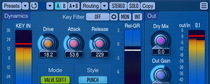
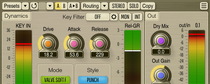
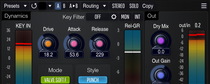
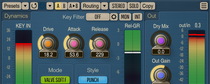
Voxengo Crunchessor VST Screenshot


Contents

Introduction
Preset management
Knob control
Parameters
Gain reduction meter
Mode buttons
Side-chaining
Troubleshooting tips and additional information


Introduction

Crunchessor is a general-purpose track compressor in PC VST plug-in format. One of its main advantages is the ease of tuning, which at the same time instantly delivers an excellent sonic performance. Another remarkable feature of Crunchessor is its valve-type processing, which is applied in parallel to compression. This makes Crunchessor an ideal choice for musicians and producers who are fond of analog compression sound and its warmness.

Beside this, Crunchessor offers you a selection of compression coloration styles--by itself a pretty unique feature for a compressor. Choosing an appropriate coloration style, you can add the character most suitable for the program material you are working with. As an option, you can disable both coloration and valve warming processing to get a neutral and clean compression sound.

Being a general-purpose compressor, Crunchessor can be used for any kind of program material: drums, vocals, bass, guitars, synth sounds, etc. Crunchessor can be suitable both for single track and whole mix processing.

Crunchessor features:

  • Easy compressor tuning
  • Valve warmness
  • Coloration styles
  • Fast and slow attack modes
  • True side-chaining
  • Side-chain signal filtering
  • Gain reduction meter
  • Factory presets
  • "A-to-B" comparisons
  • Mono-to-Stereo, Stereo-to-Stereo processing
  • All sample rates supported
  • 64-bit internal precision
  • Native assembler DSP code


  • Preset management

    Top buttons

    You can use the "Preset..." menu button to perform basic FXP/FXB preset/bank management tasks. The "Set as default" menu option of the "Presets..." menu allows you to assign the currently loaded program to the default preset program. This default program will be loaded whenever you enable a new instance of the plug-in or reset the current program. You can use the "Reset default" option to restore the default factory preset.

    By pressing the "A|B" button, you can exchange the current and shadow (or, alternatively, "A" and "B") programs. The "Copy" button copies the current program to a shadow one.

    Since only a single shadow program is used for the whole program bank, you can use "A|B" button to copy programs. To do so, you first need to switch to a program you want to copy and press the "Copy" button. Next, switch to a program where you want to put the first program and press the "A|B" button.

    The "Reset" button can be used to reset the current program. All parameters will return to their default states.


    Knob control

    Knob control

    To change a knob control's value, drag it with the left mouse button and move it up or down. For finer adjustment, press the right mouse button while dragging. Double-clicking on the knob with the left mouse button will return the knob to its default position.


    Parameters

    In parameter adjusts the input gain. It is sometimes useful to adjust the input level if you are using a preset created for another signal level. This way you will not need to adjust other plug-in's parameters. The In parameter can be also perceived as a threshold parameter available in conventional compressors.

    Drive parameter controls the amount of compression being applied to the incoming signal. To have the best control over compression you can tune the In and Drive parameters simultaneously.

    Attack and Release parameters control the transfer function of the compressor. Higher attack times allow transients to pass through while lower attack times compress transients better. The F/S/U switch available near the Attack knob selects between the Fast and Slow attack responses. In the "F" (Fast) mode, the compressor reacts and compresses transients faster. The "S" (Slow) mode can be useful for higher attack times when you need to preserve the original transient sound. The "U" (Ultra) mode enables ultra fast attack AND release times within compressor.

    The H/L switch available near the Release knob selects the range release control works in. It allows you to switch between the default "High" (25 - 3000 ms) and the "Low" (1 - 25 ms) ranges.

    Out simply controls the output signal gain. A special button near the Out knob label turns red when three sequential potential clip (over 0 dBFS) incidents were detected on any output channel. Click this button to reset it to its normal state.

    NOTE: The In and Out knobs can be inversely synchronized with the ALT and the SHIFT keys. Also note that when you are adjusting these knobs the clipping led clears.


    Gain reduction meter

    Meter

    This gain reduction meter tracks the power of the gain reduction of the compressor. Its scale is displayed in decibels (dB), in the range from 0 to 10. It also features a 1.5-second peak hold.


    Mode buttons

    Mode buttons

    The "Mode" switch allows you to choose between several valve-type and clean processing modes. Valve processing applies a great deal of warmth during compression, and doing so it can adjust the original tone of the sound. The Clean mode gives a more neutral sound, which can be particularly useful for mastering applications. Valv H is the 'hard' valve processing setting, Valv S is the 'soft' valve processing setting. The 'Crisp' modes offer a brighter sound in comparison to the 'Valve' modes.

    A button near the Mode switch selects the strength of valve processing.

    The "Style" selector gives you an opportunity to select an appropriate character of the compressor. The selected `character' is most evident on the transient moments of the sound, i.e. when the compressor actually starts to work (reduces gain). Here is a list of all Style options and what kind of filtering they apply:

    • Flat: no filtering
    • Punch: up to 3dB of gain at 5kHz, up to 3dB of gain at 64Hz
    • Bright: up to 3dB of gain at 10kHz
    • Clear: up to -3dB of gain at 1kHz, up to 3dB of gain at 64Hz
    • LoPump: up to 6dB of gain at 64Hz
    • Warm: up to 4dB of gain at 1kHz
    • Dark: up to -3dB of gain at 8kHz, up to -3dB of gain at 9kHz
    • Snappy: up to 6dB of gain at 2.2kHz, up to 6dB of gain at 6kHz
    • Smooth: up to 3dB of gain at 1kHz, up to -6dB of gain at 10kHz

    The "Filter" switch enables the internal side-chain signal filtering. When this switch is enabled, the input signal will be internally processed by a filter. Filter options are:

    • MidFreq: a wide parametric filter centered around 1 kHz, having 6 dB of gain. Such emphasis applied on the center of the audible frequency spectrum can be benefical when one wants to reduce various warbling effects caused by the extremely powerful transients in the high frequency end. During such moments the higher frequencies start to 'duck' the lower frequencies causing an unstable 'warbling' sound in the lower end. Enabling the Filter is most useful for wide-band signals like complete mixes.
    • LoFreq: filter which increases power of lower frequencies a lot.
    • HiFreq: filter which increases power of higher frequencies a lot.
    • BDrum: low-pass filter which filters everything out above 128 Hz.
    • SDrum: band-pass filter with center around 1.5 kHz.
    • Hi-Hat: high-pass filter which filters everything out below 6 kHz.

    The "Force Mono" switch enables processing of the left channel only (when stereo material is being processed). This mode allows you to save 5-20% of the CPU power in comparison to the full stereo operation, depending on the settings used.

    The "High/Normal Quality" button is used to switch between the normal and the high-quality processing modes. The high-quality processing mode internally uses a two-times higher sample rate, performing 2x oversampling. The high quality mode uses about three times more CPU resources. The "Auto" quality mode disables oversampling in the normal real-time plug-in operation and turns oversampling on during the offline audio bouncing. Please note that the "Auto" mode may not work properly in all hosts (if the host does not report back when it enters the offline processing mode).


    Side-chaining

    Side-chaining

    Crunchessor also features a true side-chain compression. In most modern hosts which support VST 2.3 and multi-input capability Crunchessor opens as a 4-input channel plug-in with channels 3 and 4 being side-chain channels. In some older hosts you should enable side-chaining explicitly on the help screen (Force Sidech option). You may also disable side-chaining if plug-in refuses to work properly in your host application.

    If the side-chaining is active you will be able to select channels 3 and 4 beside L and R in the "SC" (side-chain source) selection box.

    Side-chaining does not adjust any compressor settings. You can use the "Mon" (monitor) side-chain switch to bypass the main output and hear the side-chain signal. Please note that monitored side-chain signal is filtered by the selected Filter option.


    ?

    Pressing this button will display the plug-in's info screen. This screen shows copyright and registration information, and contains the "Help" button which opens the bundled HTML help file you are reading now.


    Troubleshooting tips and additional information


    What are the three valve types corresponding to - approximately?

    H stands for hard, S stands for soft. To get the most powerful coloration you should use ValvH 3. To get the most subtle coloration you should use ValvS 1. It's best to perceive these three Valve modes with steps 1, 2, 3 as overall 9 steps of 'hardness' of the Valve mode. The same applies to 'Crisp' modes.


    I was wondering if it would be possible to add threshold and compression ratio controls in one of the future versions?

    It should be said that the Drive knob incorporates both threshold, ratio and auto-gain controls, in a logical way. Using the In knob you can have more control. This means you don't really need any additional controls - just hear how it sounds and fine-tune the In and Drive knobs accordingly.


    I've got a question about the factory presets. Why is that once I recall one and then make some adjustments, those adjustments overwrite the original preset? Can I defeat this 'charcteristic'? Is there a way to reset them to their original values? How can I save my own presets?

    Factory presets are available as FXP files in the setup folder (e.g. ...\VstPlugins\Voxengo Crunchessor VST\). Original factory presets will be replaced because that is a feature of VST specification. If you wish to access the original presets you have to load it from the external file or to reinsert the plug-in. You can save your presets using the 'Presets...' menu or you can use the same standard function of your host.


    Does any of you know how to use the side-chain function in Nuendo?

    Forum post by Mark Edmonds:

    There is a way to get sidechaining in Nuendo and I would expect SX as well. I'm not going to claim this is the perfect solution but one I've just knocked up to try side chaining with Crunchessor.

    1. Enable sidechaining in Crunchessor.

    2. Add a group track and set to Quadro (4.0).

    3. Route both track and control sources to the group.

    4. Use the surround panners to set the track source to front middle and the control source to rear middle.

    5. If you need output from your control source at the main bus, simply add a send and enable it. You have to do it this way because I don't think you have pan control on sends in Nuendo which means the only way to control pan from the audio and control sources is to use their main outputs into the 4 channel group.

    6. Tweak the settings in Crunchessor and you should be getting side chaining.

    Follow-up comment by Crackbaby:

    It worked perfectly, the way you described. Thanks a lot! Right now I'm listening to a simple pattern to see if it works, with four on the floor and 16 hihats.. and yes, the bassdrum is unaffected and the hihats follows the bd. Great! I would just like to add something, so it will be easier for them wanting to try. When you set the control signal to back+middle, it goes silent. Dont worry, use a send to a new group or master out. I got a little confused and maybe others will, but this way it works great.

    Another solution to this (applies to both Cubase and Nuendo), by PeterL:

    The following example will use a kick drum track to duck/compress a bass line track:

    1) Create a Quadro group (L,R,LS,RS).

    2) Route the bass track to the Quadro group.

    a) Open the SurroundPan window in the bass track by double-click on the pan-view in the mixer.

    b) Here you must set the Mode Mo./St to Y-Mirror (By default it is set to Mono-Mix).

    c) Set the grey panning balls in the SurroundPan window to 100% left and right and pan it to L/R. This means the L-ball sits at top-left, the R-ball sits at top-right in the SurroundPan view.

    3) Route a send-slot of the kick track to the Quadro group. (Of course you can route the kick track directly to the Quadro group, but you won't hear the kick drum at the stereo output bus in this case)

    a) Set Pre-Fader switch to ON (the "at" symbol). (It is necessary to retain the control over the volume slider for the kick track)

    b) Set the Send-Amount slider to 0 (CTRL left click on the slider).

    c) Change the view of the send-slot to "Routing" (little window above the send slots).

    d) Open the SurroundPan window by double-click the (now visible) pan-view in the send slot.

    e) Do the same as in 2b)

    f) Set the grey panning balls in the SurroundPan window to 100% left and right and pan it to LS/RS. This means the L-ball sits at bottom-left, the R-ball sits at bottom-right in the SurroundPan view.

    4) Insert Crunchessor in an insert-slot of the Quadro group

    5) Activate Side-Chain in Crunchessor

    6) Start with the preset "Club is pumping" (or pull the Drive-knob to maximum) in Crunchessor to see/hear the effect.

    Leave the Crunchessor window open to see the effect via the gain reduction meter: When the kick drum sets in, the bass track will be ducked/compressed according to the compressor settings applied to the plug-in.

    Addition: There's also another "quick" way to do side-chaining with Quadro Output-Bus instead of Quadro-Group:

    1) Define a new Quadro Output-Bus and there 2 child/sub-busses ("Stereo" and "Stereo (Rs Ls)").

    2) Route Bass track to "Stereo" and Kick track to "Stereo (Rs Ls)".

    3) Insert Crunchessor in the Quadro bus.

    You don't have to fiddle with Pan-Settings with this method but has its disadvantage that you don't have further routing possibilities with the Quadro bus (at least not in SX2).


    It would be really great to have a curve showing what Crunchessor does (as found in many compressor plugs). I know, it's all about sound, but sometimes visuals help sound.

    Thanks for the request, but I never had plans to add such graphic display as it is highly redundant considering Crunchessor's compressor is half-automatic (i.e. there are no threshold nor ratio controls). Tuning by ear is the best technique with Crunchessor.


    Why is it so "easy" to light up that red clipping indicator? (not only in Crunchessor but also in other non-Voxengo plugs). Shouldn't there be more than enough headroom with internal double precision and most hosts operating at 32bit float? I can understand why clipping on the master bus must be avoided but a VST passing audio to a host channel?

    You do not have to pay attention to that clipping indicator because, indeed, it does not really clip inside the plug-in. It is an approximation pretending the plug-in stays as a last plug-in in the chain of the master bus.


    In the Crunchessor manual you state "Another remarkable feature of Crunchessor is its valve-type processing, which is applied in parallel to compression." Does this mean that the 'IN' db level kind of drives the valve processing and that more IN gain adds more color, less IN gain results in less color or valve processing ?

    'IN' parameter by itself does not adjust the valve processing - it only feeds more signal to the input and thus distortion happens earlier most of the time.


    When I click A|B, I can't tell which one (A or B) is now active. Shouldn't one of them change color or something?

    There are no distinctive A and B states within the plug-in. A|B is meant to switch the current program and a 'shadow' one.


    If I wanted to do some low level compression with Crunchessor, for example, I want a 1.5:1 down to -30 db. It seems impossible with this plug as the more drive I add the more ratio I get.

    Crunchessor uses a kind of logarithmic scale for compression - it is hardly possible to define 1.5:1 ratio. However, you may try adjusting the In Gain control. Other than that you do not have means to specify 1.5:1 ratio and -30 dB threshold in Crunchessor.


    I have a question about sidechaining using the Cruchessor. I sent a bass and kick to a group in Cubase SX 3.1. Set the kick to the right and the bass to the left and set the key on R (kick is the trigger) it works correctly, but now how do I get the signals back to center of the mix?

    Have you tried enabling the 'F.Mono' switch? In your setup this should leave the bass centered on L/R output, without key signal. If you want to leave the key signal as well, you should do so using Cubase's routing capabilities.


    One thing that I find a bit confusing is the Drive parameter. The manual states that it controls the amount of compression, so I assume it means "sidechain drive". However, it seems to also boost the output; only the boost in level has nothing to do with the dB display value. So my only thought is that there is some sort of auto-makeup gain happening.

    Yes, Crunchessor's compressor does auto makeup based on the Drive setting. That's why it is better to feed side-chain signal of the equal peak power as the signal you are processing, otherwise auto makeup gain will be a little off the line.


    So it's some pre-determined make-up gain which is calculated based on typical gain reduction of a typical signal level at the given Drive setting?

    Yes, that's pretty close. In fact, this makeup gain works almost flawlessly if you are not using a different side-chain signal.


    I just tried the demo and I love this compressor, except for one thing. On all modes except 'Clean', extreme low freqs are created.

    It is simply impossible to have 'clean' lows while still have 'valve' coloration. The only suggestion would be using Valv S/1 mode - it offers minimal coloration. If this still does not work then probably Crunchessor is not well suited for music material you are working with.


    I wonder how does the In and Out knobs relate to drive. It seems to me that they are redunant but I am probably wrong but I don't know how.

    "In" knob was added as a remedy against very low-volume signals. But beside that it can be used as an additional compression control - for example, at the given Drive setting you may get more compression by increasing the "In" gain.


    Happy Mixing!


    Copyright © 2004-2007 Aleksey Vaneev

    VST is a trademark of Steinberg Media Technologies GmbH.
    All other trademarks belong to their respective owners.
    Plug-in uses PNG library by Gustavo Huffenbacher Daud